ASIC Fluminer T3
۱۴۰۵/۶/۲۳
The Fluminer T3 is the first Bitcoin miner from Fluminer, a brand widely known for its popular Litecoin and Dogecoin miners (L1 and L2 series). The device runs on the SHA-256 algorithm, delivers 115 TH/s hashrate at 1700W power consumption, and achieves 14.78 J/TH energy efficiency — significantly better than the Antminer S21's 17.5 J/TH.
The key advantage of the Fluminer T3 is its noise level of ≈50 dB. The device features a proprietary dual counter-rotating turbine fan system with magnetic levitation bearings, making it one of the quietest Bitcoin ASIC miners suitable for bedroom, study room, or small office use.
The device is designed for home and office use — a standard 220–240V outlet, compact size, and quiet operation make it suitable for virtually any room.
💎 On the Kryptex Pool, SHA256 Fluminer T3 ASICs can mine BTC, FB, XEC, DGB, BCH, QUAI.
✅ Additionally, merged mining for BTC+FB is available, allowing you to mine both Bitcoin and Fractal Bitcoin simultaneously.
- Start Mining Bitcoin BTC + Fractal Bitcoin FB — https://pool.kryptex.com/btc
- Start Mining Fractal Bitcoin FB — https://pool.kryptex.com/fb
- Start Mining Quai Network QUAI SHA256 — https://pool.kryptex.com/quai-sha256
- Start Mining eCash XEC — https://pool.kryptex.com/xec
- Start Mining DigiByte DGB — https://pool.kryptex.com/dgb
- Start Mining Bitcoin Cash BCH — https://pool.kryptex.com/bch
Fluminer T3 — Specifications and Dimensions
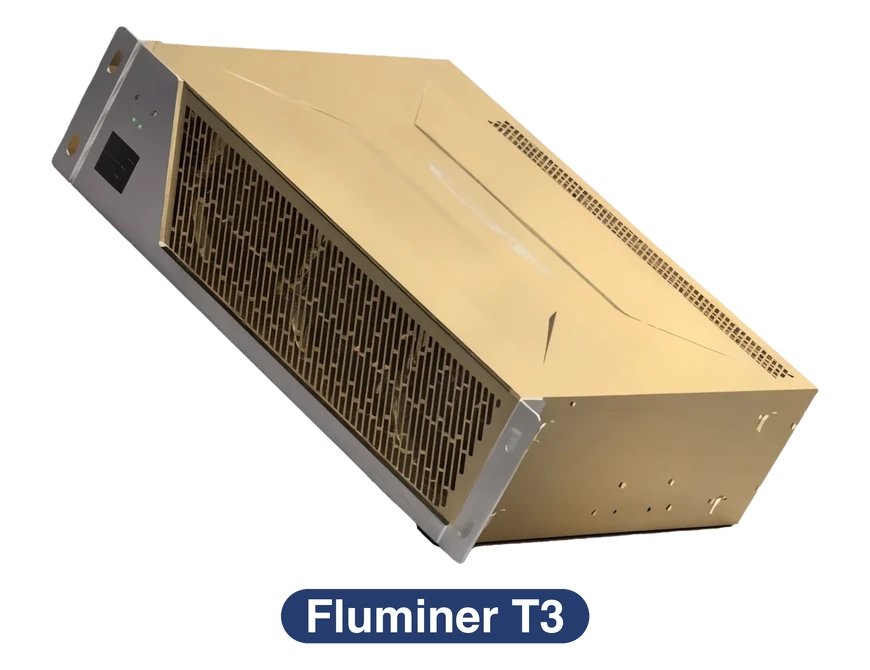
Fluminer T3
| Model | Algorithm | Coin | Hashrate | Consumption | Dimensions (mm) | Weight |
|---|---|---|---|---|---|---|
| Fluminer T3 | SHA-256 | BTC, FB, XEC, DGB, BCH, QUAI | 115 TH/s (±5%) | 1700 W (±10%) | 447 × 350 × 131 | 12.8 kg |
Additional specifications:
- Energy efficiency: 14.78 J/TH
- Noise level: ≈50 dB — like a conversation or library. For reference, standard ASICs run at 76 dB (like a vacuum cleaner)
- Input voltage: 220–240V AC, 50–60 Hz, up to 16A
- Network interface: Ethernet RJ45 10M/100M + WiFi 2.4G/5.0G
- Operating temperature: 0°C — 35°C
- Cooling: Air cooling with dual counter-rotating turbine fans and magnetic levitation bearings
Fluminer T3 Hashrate
The Fluminer T3 supports three operating modes, allowing you to find the right balance between performance, power consumption, and noise level:
- Silent Mode — quiet mode for home use. Priority is minimum noise and best energy efficiency. Ideal for bedroom or study room.
- Normal Mode — balanced performance mode. Hashrate 115 TH/s, power consumption 1700 W, noise ≈50 dB. Middle ground between silent and performance modes.
- Performance Mode — maximum performance. Hashrate exceeds 115 TH/s with increased power consumption. Make sure the installation location has good ventilation, as this mode increases heat output.
Fluminer T3 Profitability
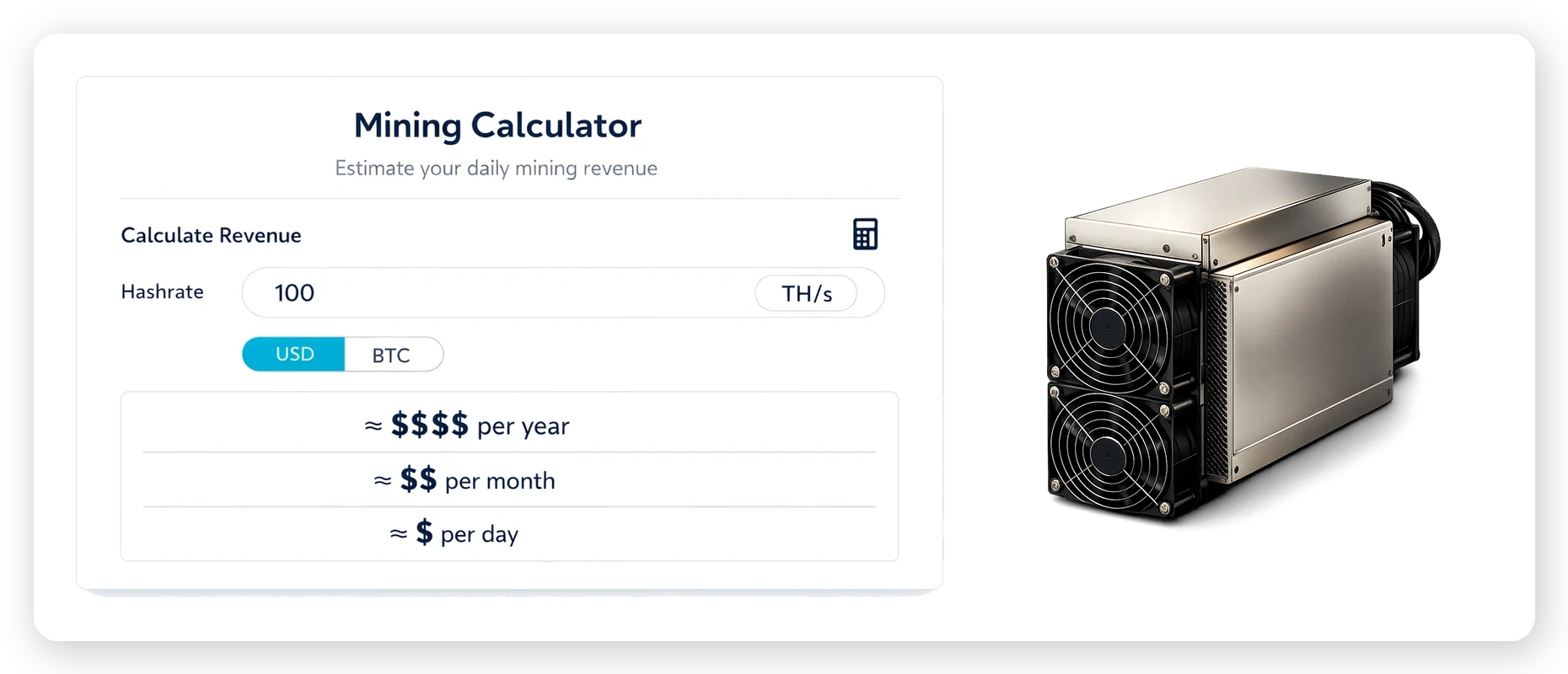
We recommend checking the actual profitability in our mining calculator, where you can also calculate profit including your electricity costs.
👉 Check the profitability of Fluminer T3 on the mining calculator
Fluminer T3 Setup
The Fluminer T3 package includes:
- Fluminer T3 ASIC miner.
- Power cable.
- Server rack mounting ears.
- User manual.
💡 Before installation, place the device on a flat, well-ventilated surface. Make sure there is at least 20 cm of free space on each side of the device for proper airflow. Do not stack items on top of the device.
Option 1: Ethernet Connection (Recommended)
- Prepare and power on the device:
Connect an Ethernet cable to the network port on the device and to your router.
Connect the power cable to the device's power connector.
Plug the other end into a 220–240V outlet.
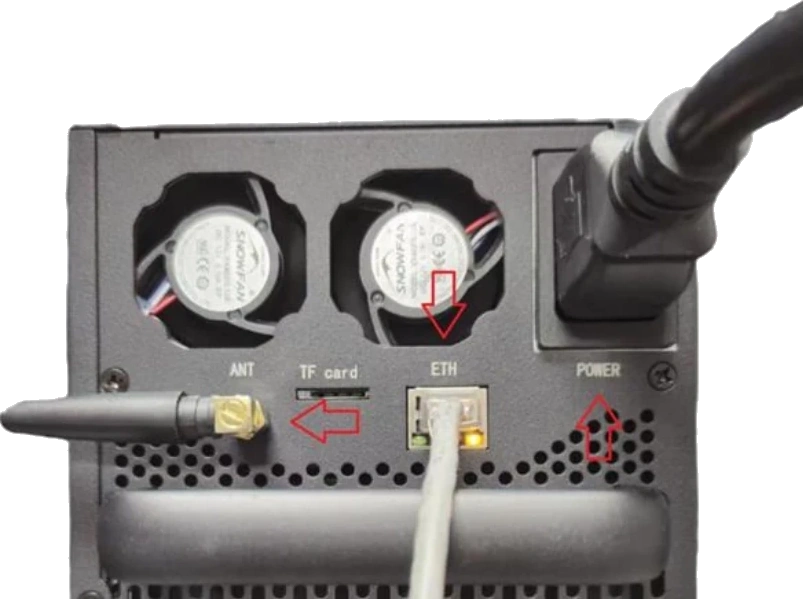
Press the power button — the green indicator will light up as the device boots.
- Find the device's IP address:
- The IP address is displayed on the device's screen (if available).
- Alternatively, log into your router's admin panel and check the list of connected devices (DHCP clients). The device will appear as "Fluminer" or "T3".
- Or use an IP scanner tool, e.g. Advanced IP Scanner or Angry IP Scanner.
- Access the web interface:
Open a browser on a computer or phone connected to the same network.
Enter the IP address in the address bar:
http://[IP_ADDRESS]Log in with the default credentials: username
root, passwordroot.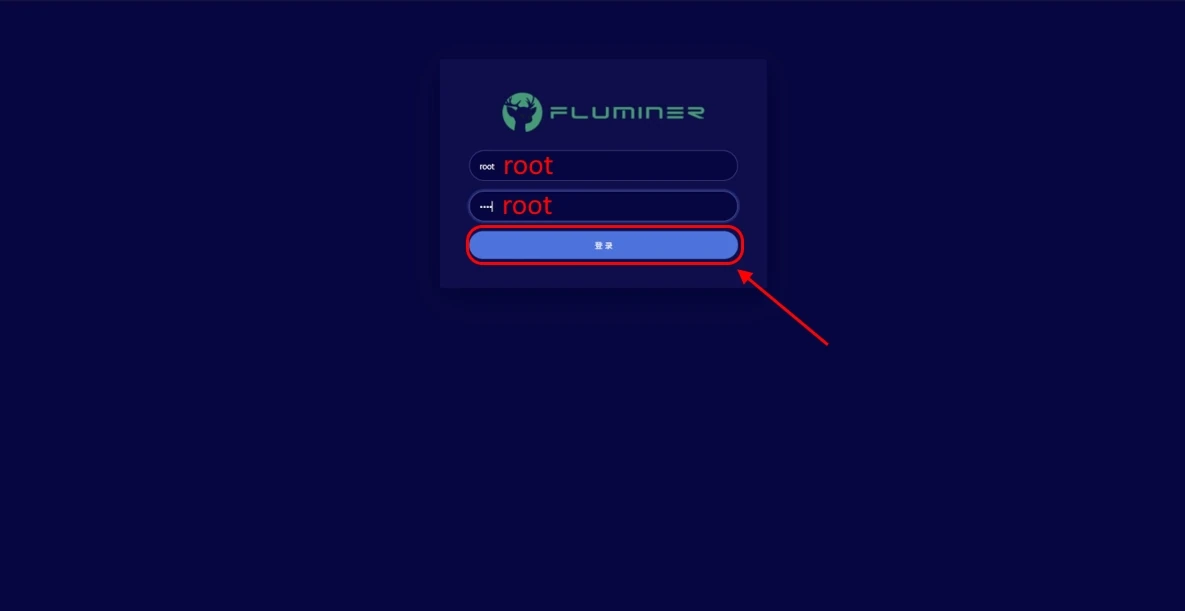
On first login, you will be prompted to change the password — create a new strong password.
Option 2: WiFi Hotspot Setup (without Ethernet cable)
If an Ethernet cable is not available, the ASIC can be configured via the built-in WiFi hotspot:
- Power on the device (without an Ethernet cable connected).
- On your computer or phone, open the WiFi networks list — an open network named
flu_T3_xxxxwill appear. - Connect to this network.
- Open a browser and navigate to:
http://10.42.0.1 - Enter your home WiFi network name (SSID) and password.
- Save and restart the device. After rebooting, the ASIC will connect to your WiFi network.
💡 No crypto wallet? You can mine directly to a Kryptex account — all coins are auto-exchanged to Bitcoin. Learn more →
Pool Configuration
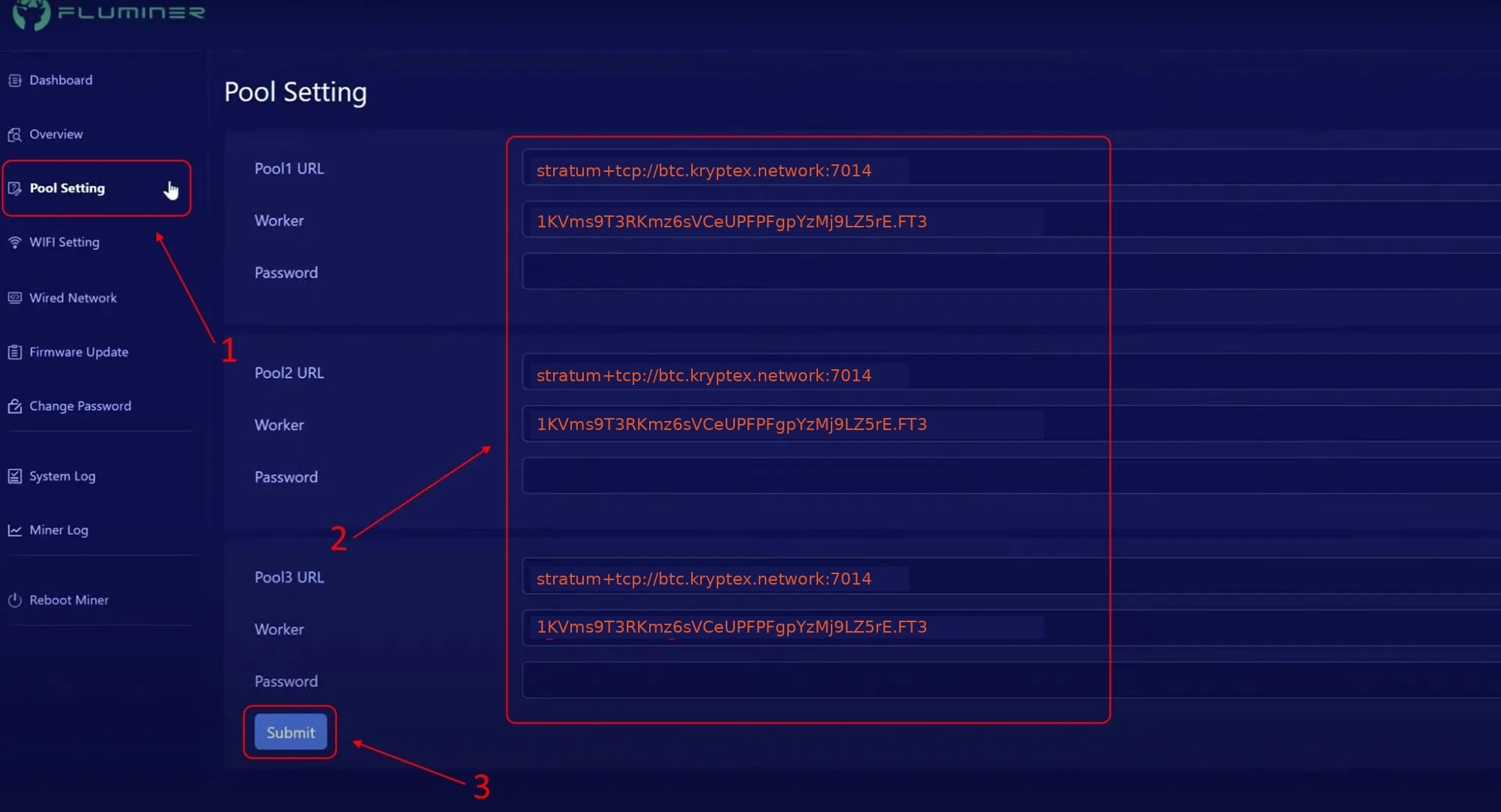
Configure pool settings:
In the left sidebar, click "Pool Setting".
Enter the pool information (pool address, wallet address, and worker name).
Coin Pool Address Worker — Wallet Address and Worker Password BTC+FB stratum+tcp://btc.kryptex.network:7014orstratum+tcp://btc-eu.kryptex.network:7014BTC_WALLET_ADDRESS.WORKER_NAMExor leave blankFB stratum+tcp://fb.kryptex.network:7013orstratum+tcp://fb-eu.kryptex.network:7013FB_WALLET_ADDRESS.WORKER_NAMExor leave blankXEC stratum+tcp://xec.kryptex.network:7036orstratum+tcp://xec-eu.kryptex.network:7036XEC_WALLET_ADDRESS.WORKER_NAMExor leave blankDGB stratum+tcp://dgb.kryptex.network:7037orstratum+tcp://dgb-eu.kryptex.network:7037DGB_WALLET_ADDRESS.WORKER_NAMExor leave blankBCH stratum+tcp://bch.kryptex.network:7015orstratum+tcp://bch-eu.kryptex.network:7015BCH_WALLET_ADDRESS.WORKER_NAMExor leave blankQUAI stratum+tcp://quai-sha256.kryptex.network:7044orstratum+tcp://quai-sha256-eu.kryptex.network:7044QUAI_WALLET_ADDRESS.WORKER_NAMExor leave blankWorker — Specify wallet and worker name in the format:
1KVms9T3RKmz6sVCeUPFPFgpYzMj9LZ5rE.FT3where:1KVms9T3RKmz6sVCeUPFPFgpYzMj9LZ5rEis your wallet address;FT3is the name of your ASIC, written in Latin characters or numbers.
⚠️ Each coin uses its own wallet format: BTC —
1...,3...orbc1...; XEC —ecash:...; DGB —D...; BCH —bitcoincash:.... To get the correct address, go to the relevant coin page on pool.kryptex.com.
Make sure to fill all 3 pool configuration rows with settings of the same pool! Click "Submit" to save settings. The ASIC will reboot automatically.
Verify ASIC operation:
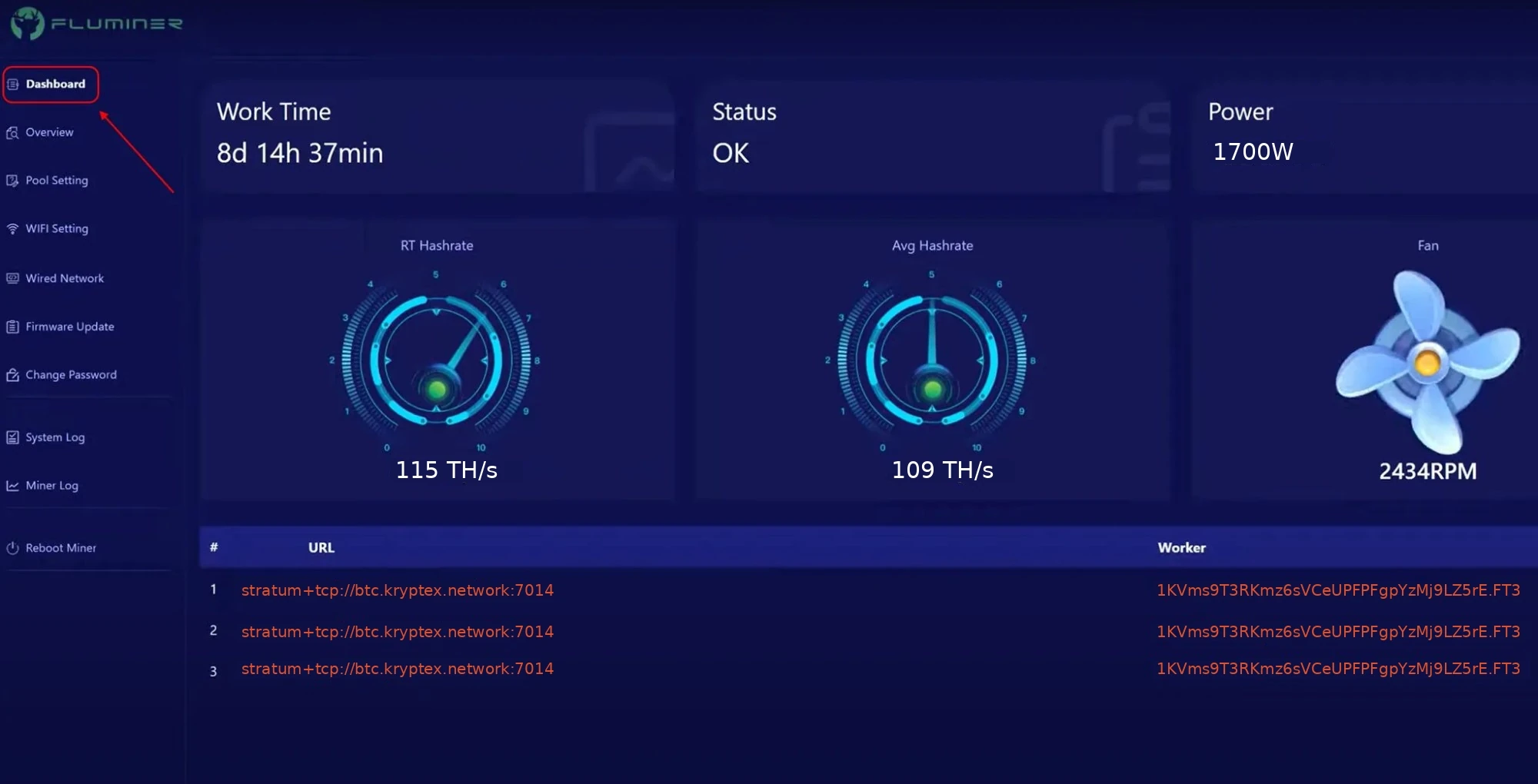
After the reboot, wait 5–10 minutes, then open the main page of the web interface. You can also check the status on the device's screen.
You will see the current hashrate and device status.
Check the statistics on the Kryptex Pool — hashrate should appear within 10–15 minutes.
SOLO Mining on Fluminer T3
Kryptex Pool supports solo mining for most coins. In solo mode, you mine independently — if you find a block, you receive the entire block reward with no sharing.
To connect to solo mining, add the solo: prefix to your wallet address in the pool settings:
- Worker (wallet address):
solo:WALLET_ADDRESS.WORKER_NAME - Pool address and port — same as regular mining.
Learn more about how solo mining works, when it's profitable, and how to set it up: What is SOLO Mining?
Fluminer T3 Firmware
Fluminer regularly releases firmware updates that improve device performance, stability, and security.
Download the latest firmware and update instructions from the official manufacturer website: fluminer.com
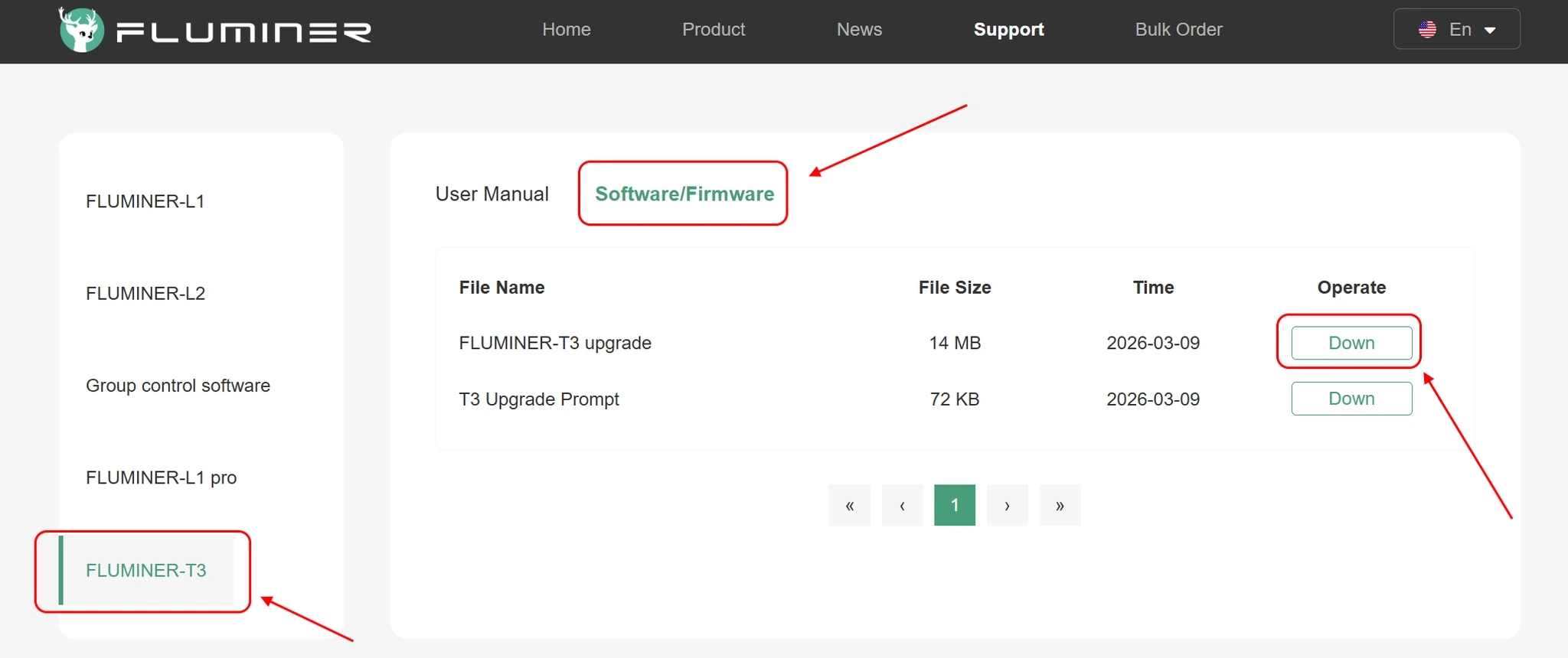
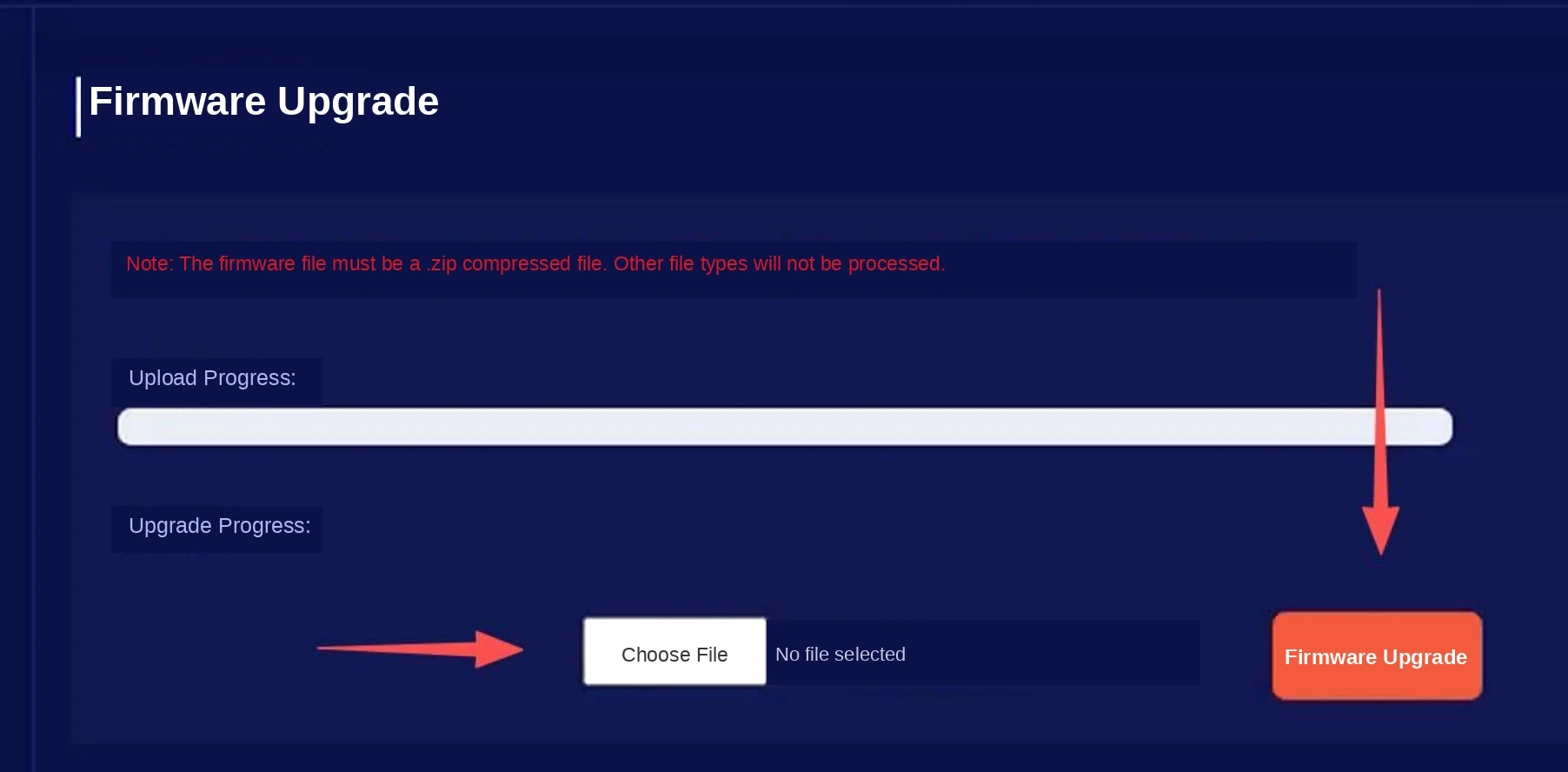
Firmware updates are performed through the device's web interface under "System" → "Firmware Upgrade".
❓ Frequently Asked Questions
Hashrate isn't showing on the pool — what should I do?
Wait 10–15 minutes after startup. Check the pool address, wallet address, and worker name. Make sure the power cable and Ethernet cable are securely connected.
The device is hot — is that normal?
Yes. During normal operation, chips heat up to ~65°C. If temperatures are higher or overheat protection triggers — check ventilation and fan cleanliness.
I forgot the web interface password — how do I reset it?
Press and hold the Reset button on the device for 5–10 seconds. The device will restore to factory settings. Default login and password: root / root.
How can I mine without a crypto wallet?
Use Kryptex account mining — all coins are automatically converted to Bitcoin and credited to your account.
How often should I clean the ASIC?
Clean the fans and vents from dust every 1–2 months, especially in dusty environments. Use compressed air.
When will I receive my first payout?
Payouts are made daily upon reaching the minimum threshold. Check payout conditions on the coin page at pool.kryptex.com.
🔥 Useful Articles
- How To Connect ASIC To The Pool?
- How to Extend the Lifespan of an ASIC Miner
- Why Does Miner and Pool Hashrate Differs?
Need Help?
If you have questions or issues with setup — contact our support: