Kryptex × BiXBiT ASIC Firmware: Overclocking, Monitoring, and Remote Control
28.07.2026
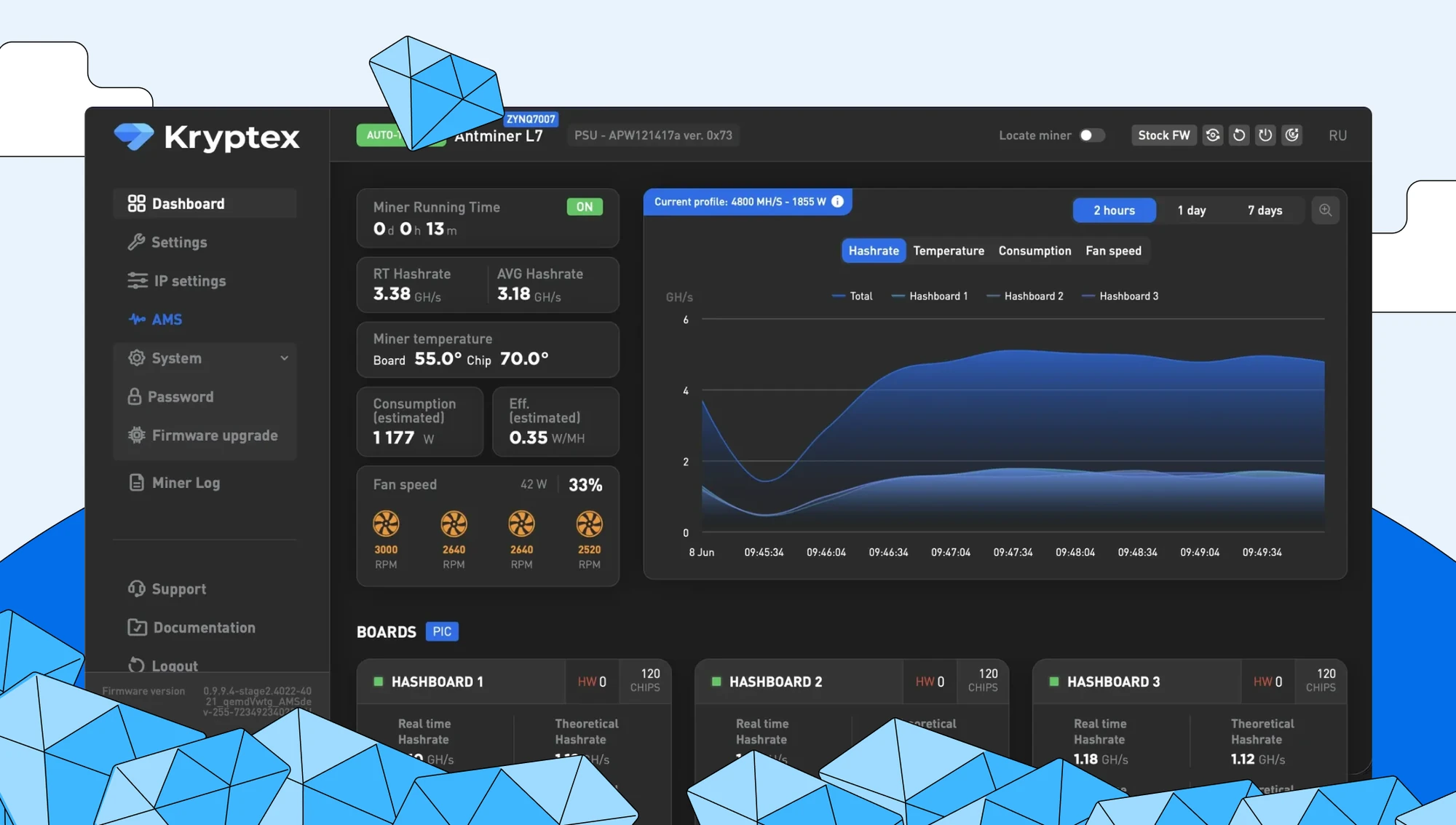
If your ASIC runs on stock firmware, you're not getting everything out of it. The factory settings leave the miner's potential untapped — no flexible overclocking profiles, no switcher, no proxy, and no detailed monitoring.
Kryptex × BiXBiT firmware changes that. It fine-tunes your ASIC, raises performance, and lowers power draw, while gentler operating modes extend the hardware's lifespan — on average lifting profitability by 25–30%. Overclocking profiles, a switcher, proxy support, detailed logs, and monitoring are all built in, and you can manage your entire fleet remotely with the free BiXBiT x Kryptex AMS.
This guide walks you through flashing the ASIC, tours the interface, connects you to the Kryptex Pool, and sets up remote management with AMS.
Kryptex × BiXBiT firmware adds:
- overclocking profiles and fine performance tuning;
- a switcher and proxy support;
- detailed logs and real-time miner monitoring;
- flexible network and security settings.
Preparing for flashing
- Make sure your ASIC model is supported by BiXBiT firmware.
- Connect your PC to the same network as the ASIC.
- For the most stable result, first roll the device back to the original (stock) Bitmain firmware manually, then install BiXBiT.
- BiXBiT can also be installed over third-party firmware — Luxor, VNISH, Braiins, MSK, or Mara — but only through that firmware's built-in roll-back-to-stock function, which the BiXBiT installer runs for you. If the roll-back fails, or returns the device to a version the installer doesn't support, the flash won't complete — which is why we recommend rolling back manually.
- Bitmain stock firmware released after March 2024 includes protection against third-party software. If the unlocker can't flash such a device, try flashing the control board from a USB drive with an older or universal stock firmware image. You'll find the official images on Bitmain's site: shop.bitmain.com/support/download.
Installing Kryptex × BiXBiT Firmware
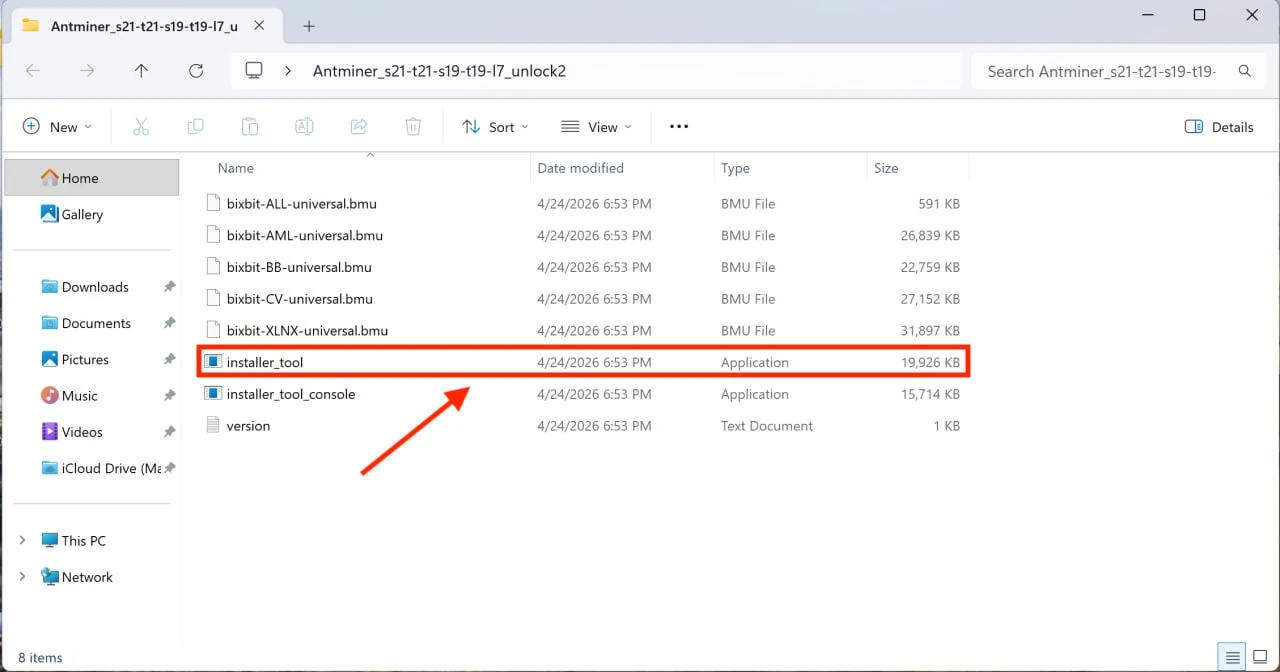
Download the BiXBiT firmware, open the archive, and run “installer_tool”.
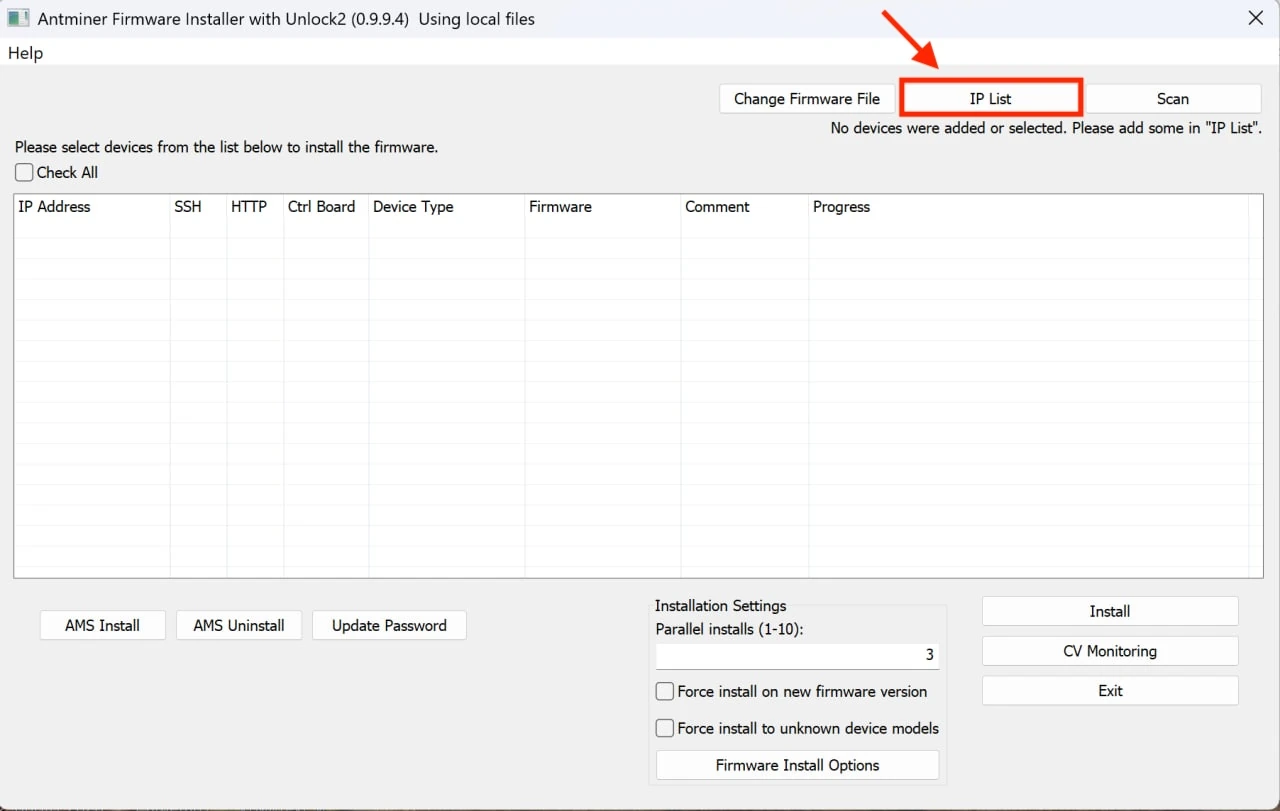
Set the IP address range.
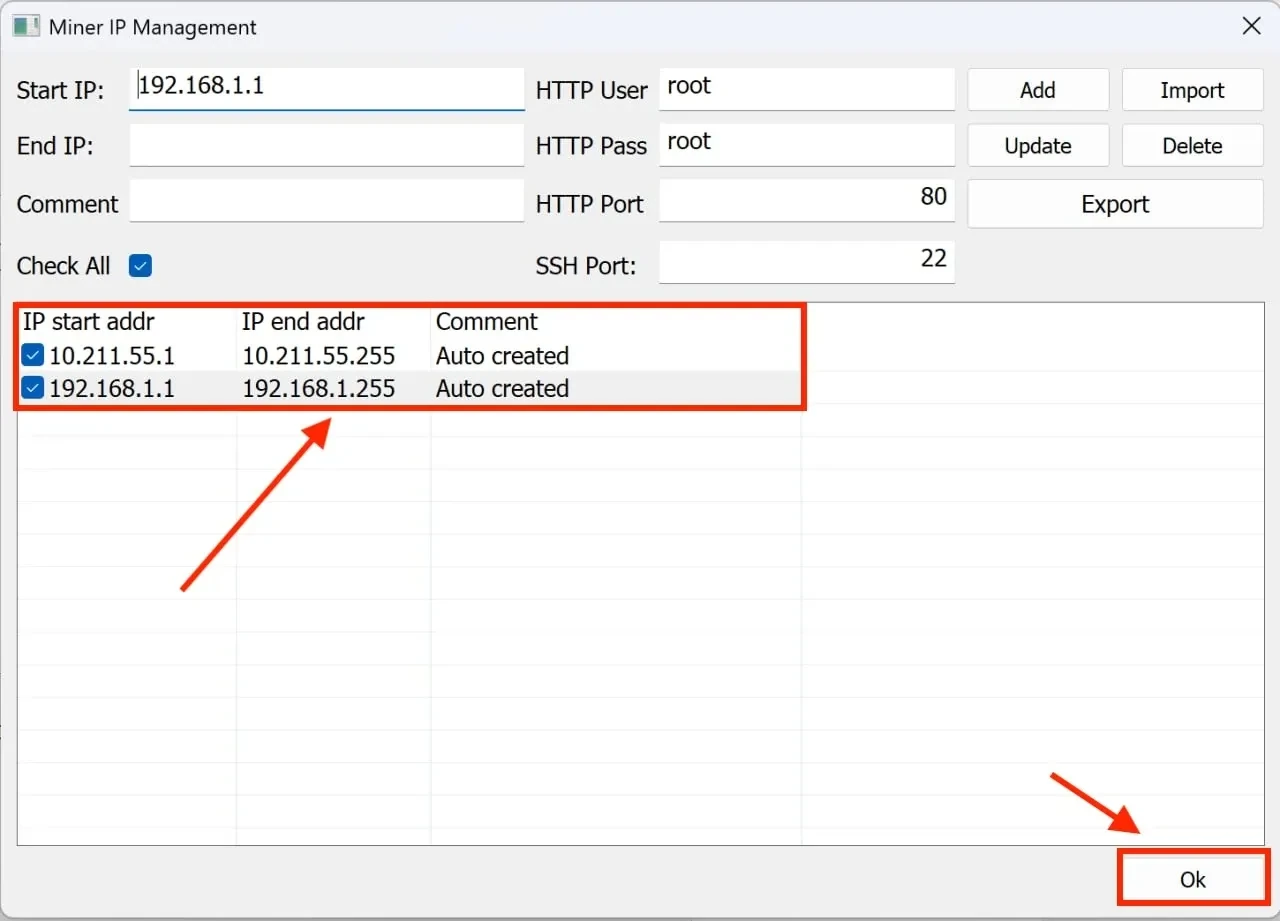
Pick the standard ranges or set your own, then click “OK”.
Scan the network, select your ASIC, and click “Install”.
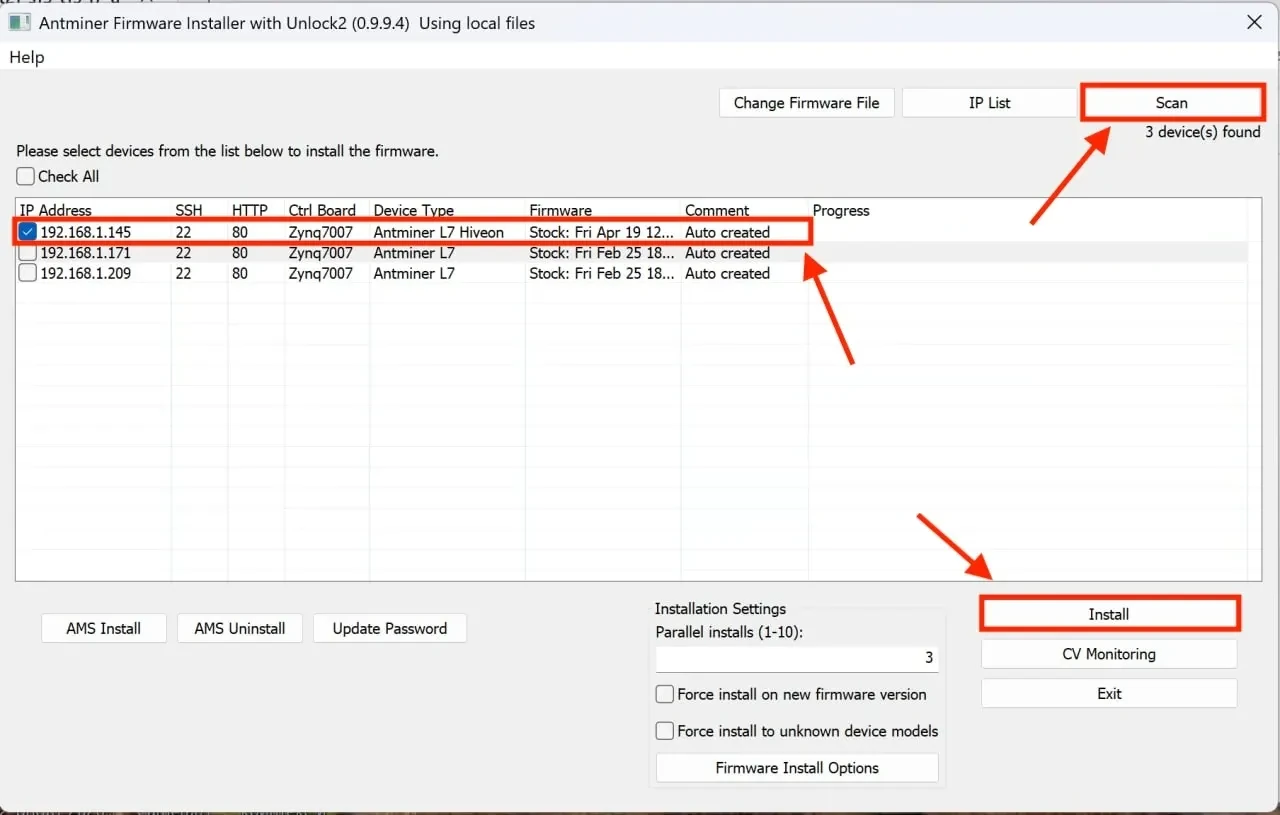
Done — the firmware is installed on your ASIC.

Something went wrong?
If your ASIC freezes, stops responding, or won't work, you can reset it to factory settings.
- On the top panel with the two LEDs (green and red), press and hold the button for 7–20 seconds until the red one lights up. Within 5 minutes the miner resets to factory settings and reboots on its own — no need to power it off.
- Once the ASIC reboots, set up mining on the Kryptex Pool — https://pool.kryptex.com.
⚠️ Flashing another firmware straight over BiXBiT can be unreliable. It's safer to restore the factory firmware first and install the target firmware from there. A BiXBiT-to-BiXBiT update usually goes through without issues.
Pool Connection Settings
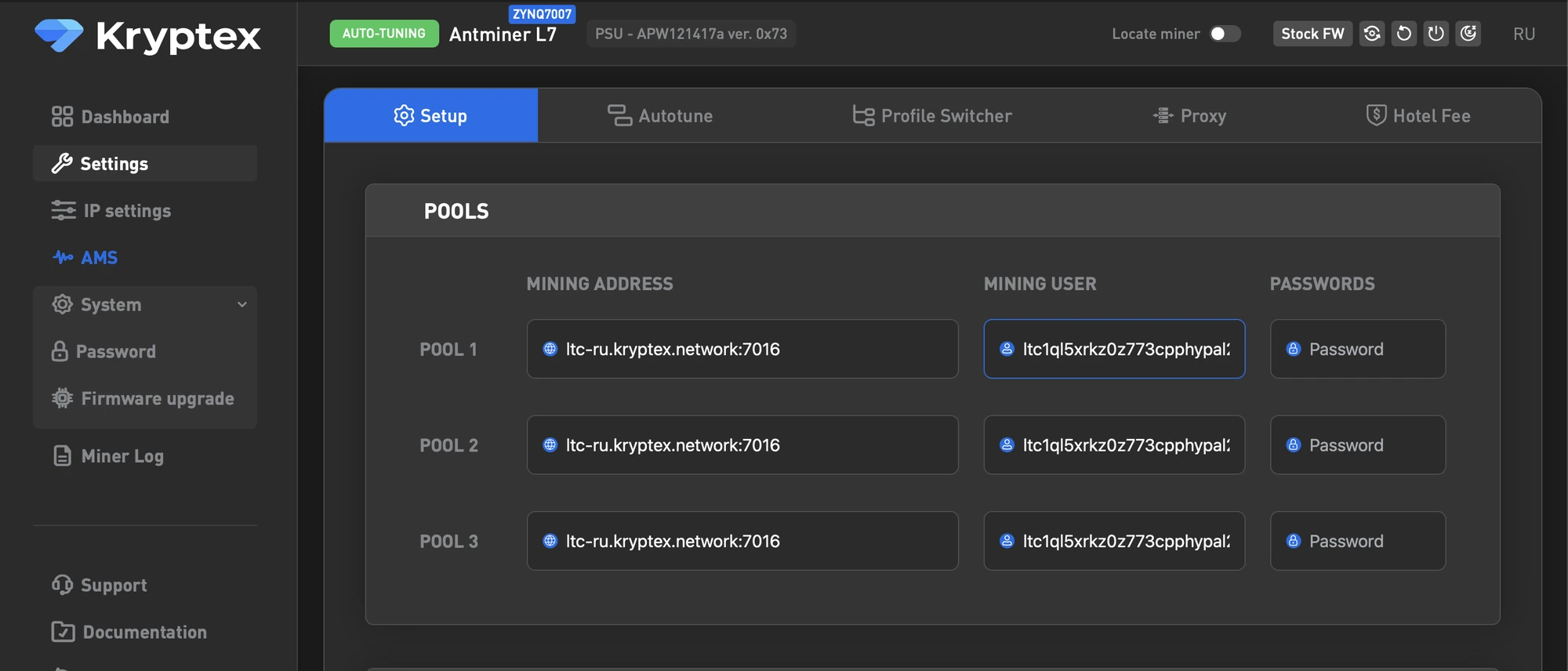
- In the firmware web interface, open the Settings section.
- In the URL field, enter your mining pool address, for example:
stratum+tcp://btc.kryptex.network:7014. - In the User field, enter the worker in the format wallet.workername — for example,
wallet.asic001. - Save the settings, and the miner will reconnect to the Kryptex Pool.
Kryptex × BiXBiT Features
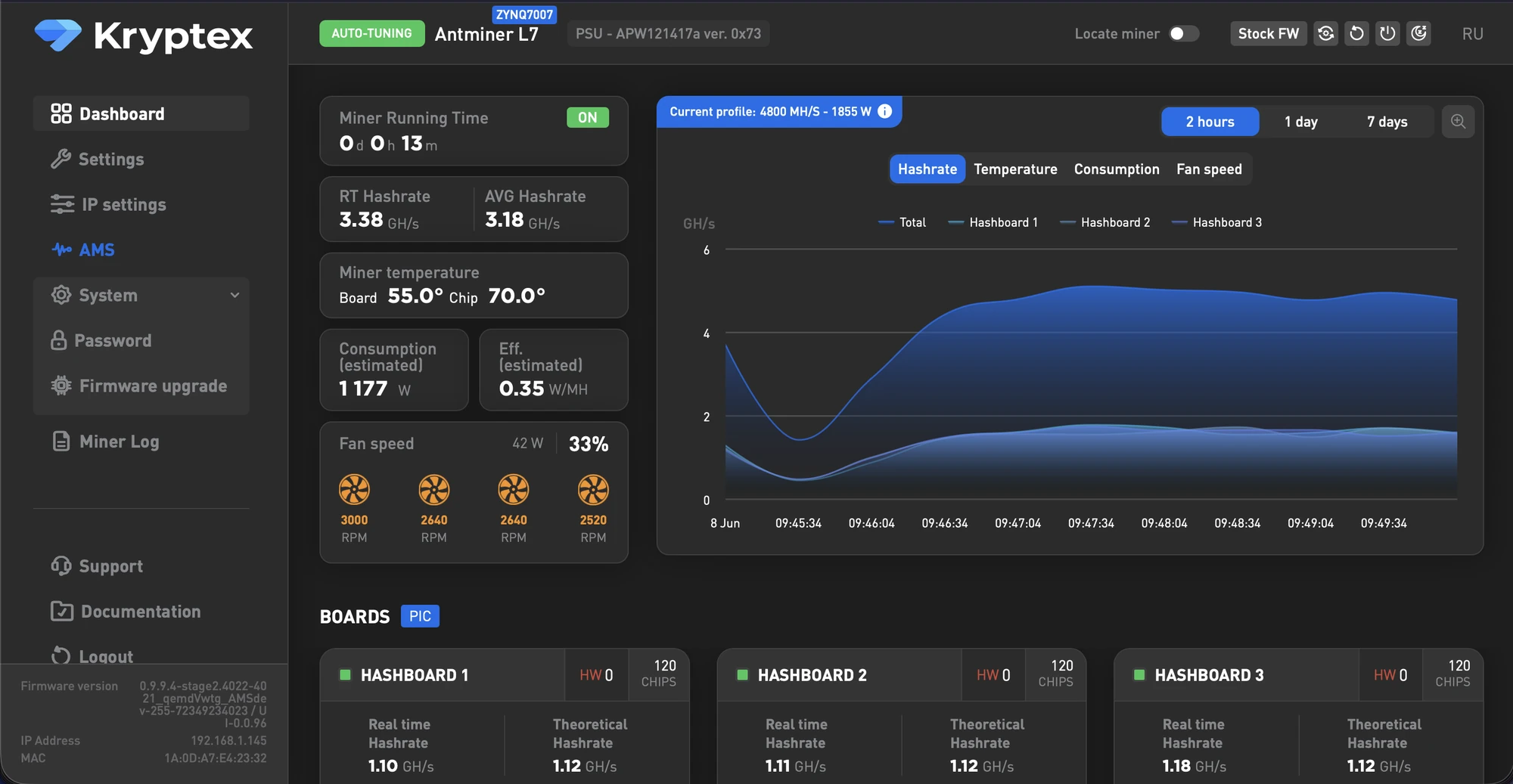
Home — shows the ASIC's key metrics: hashrate, temperature, power consumption, and pool status.
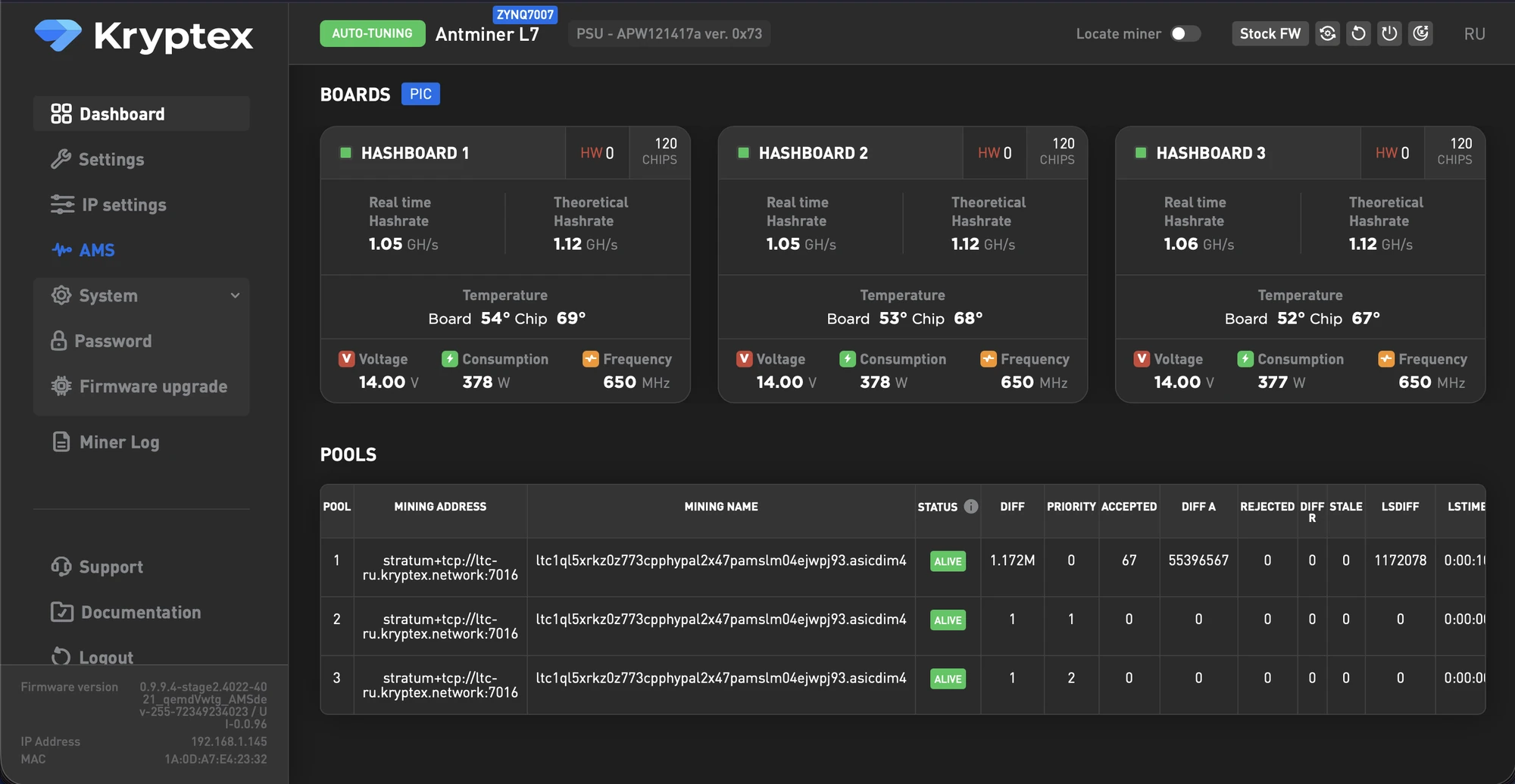
Settings — the miner's core settings.
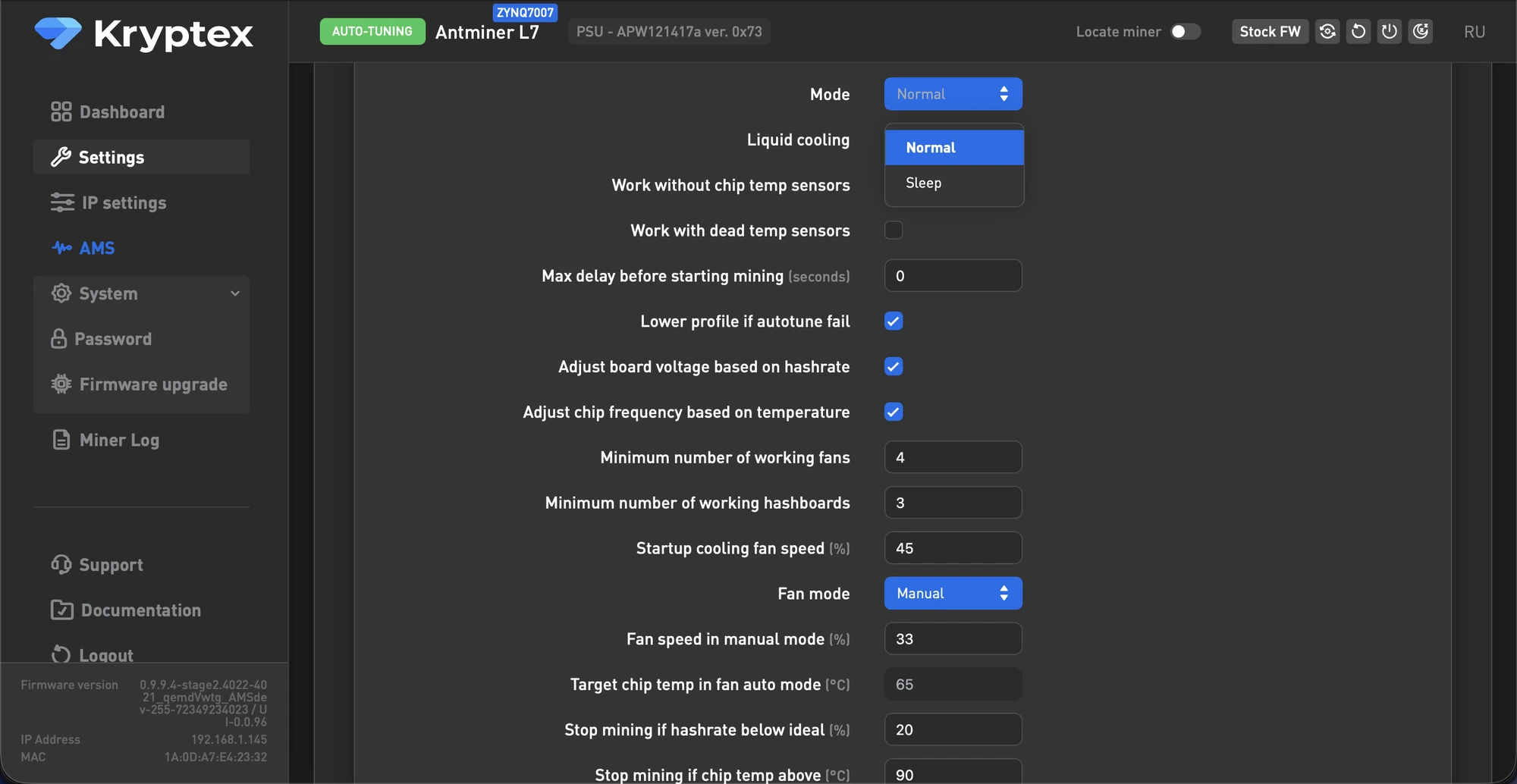
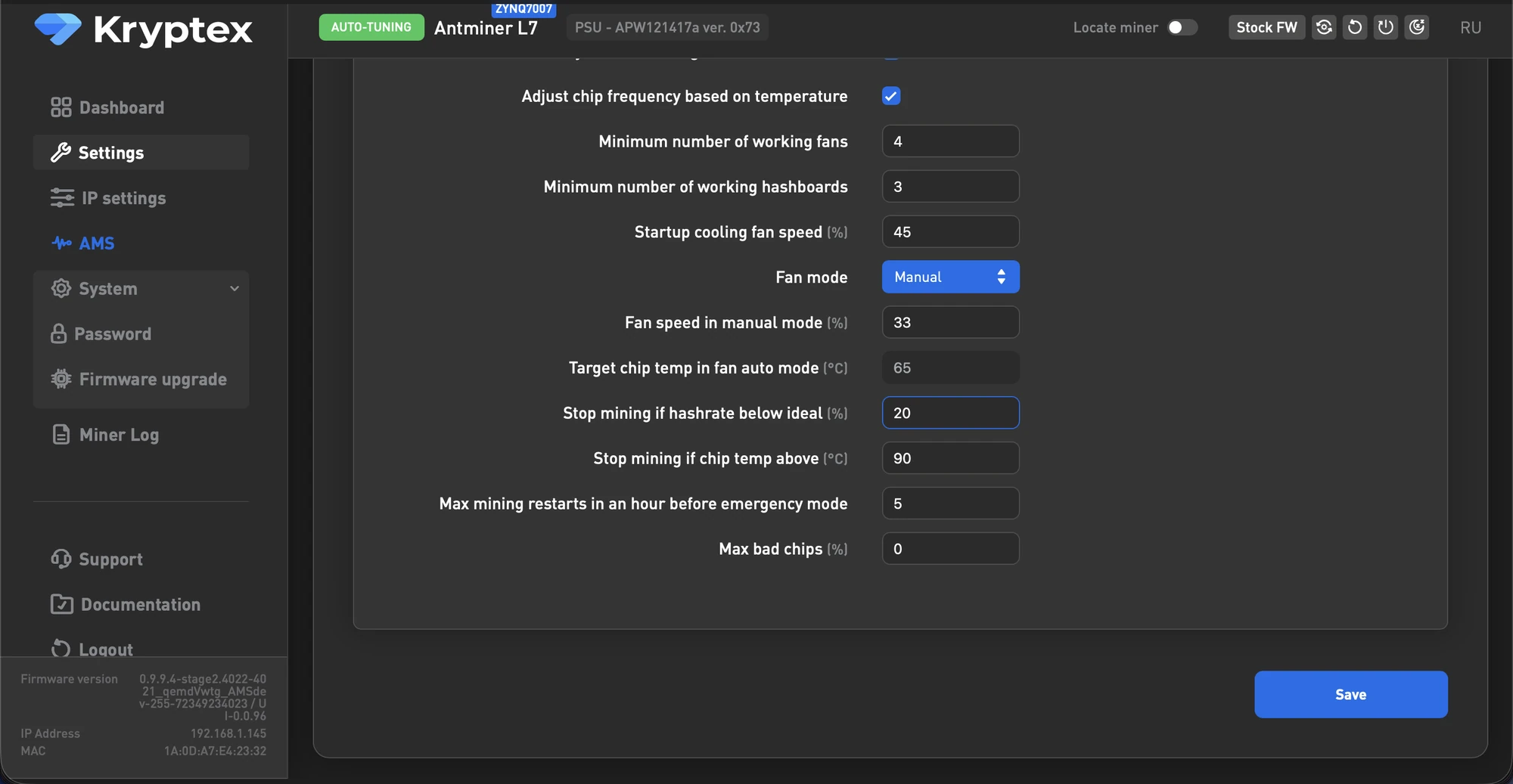
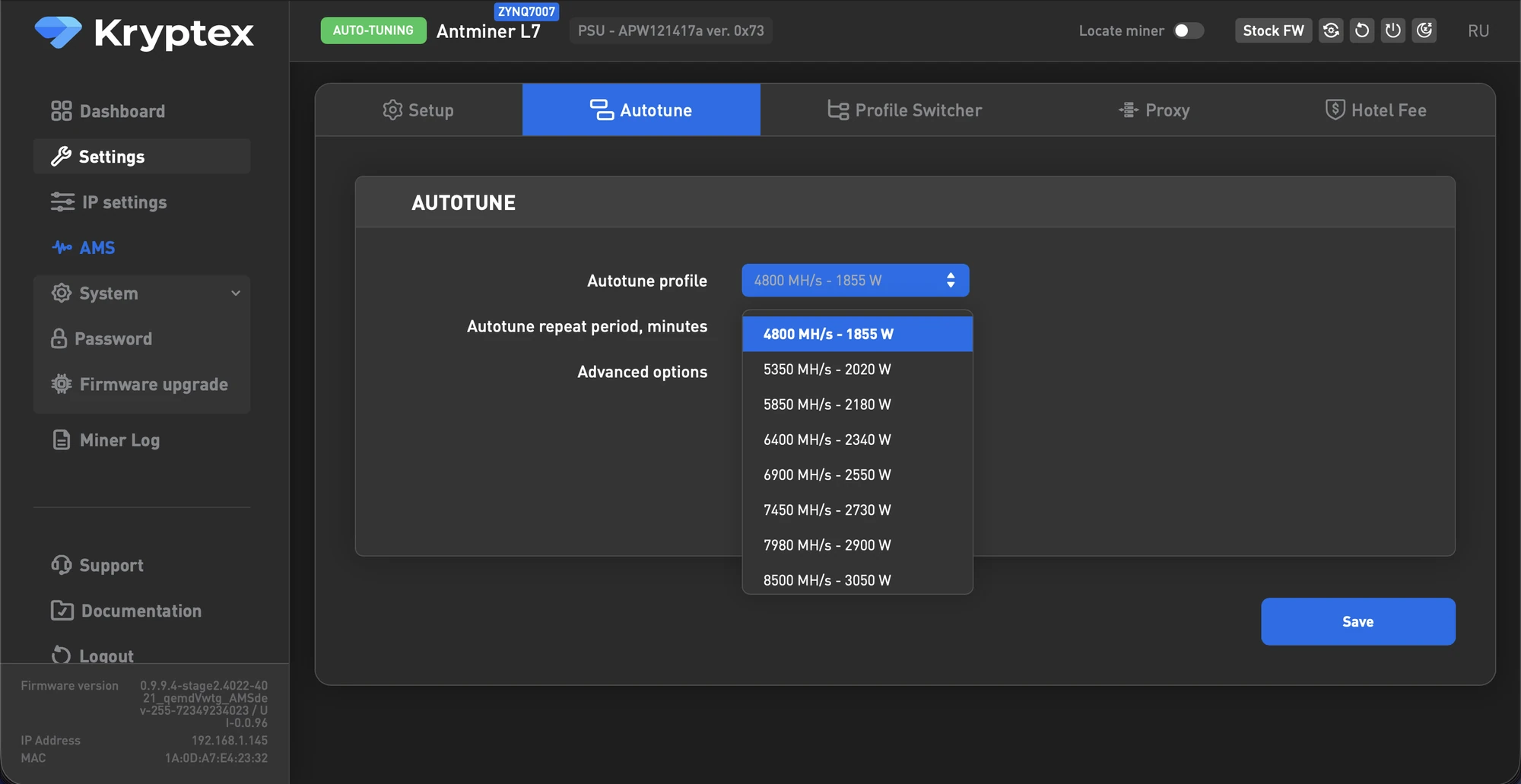
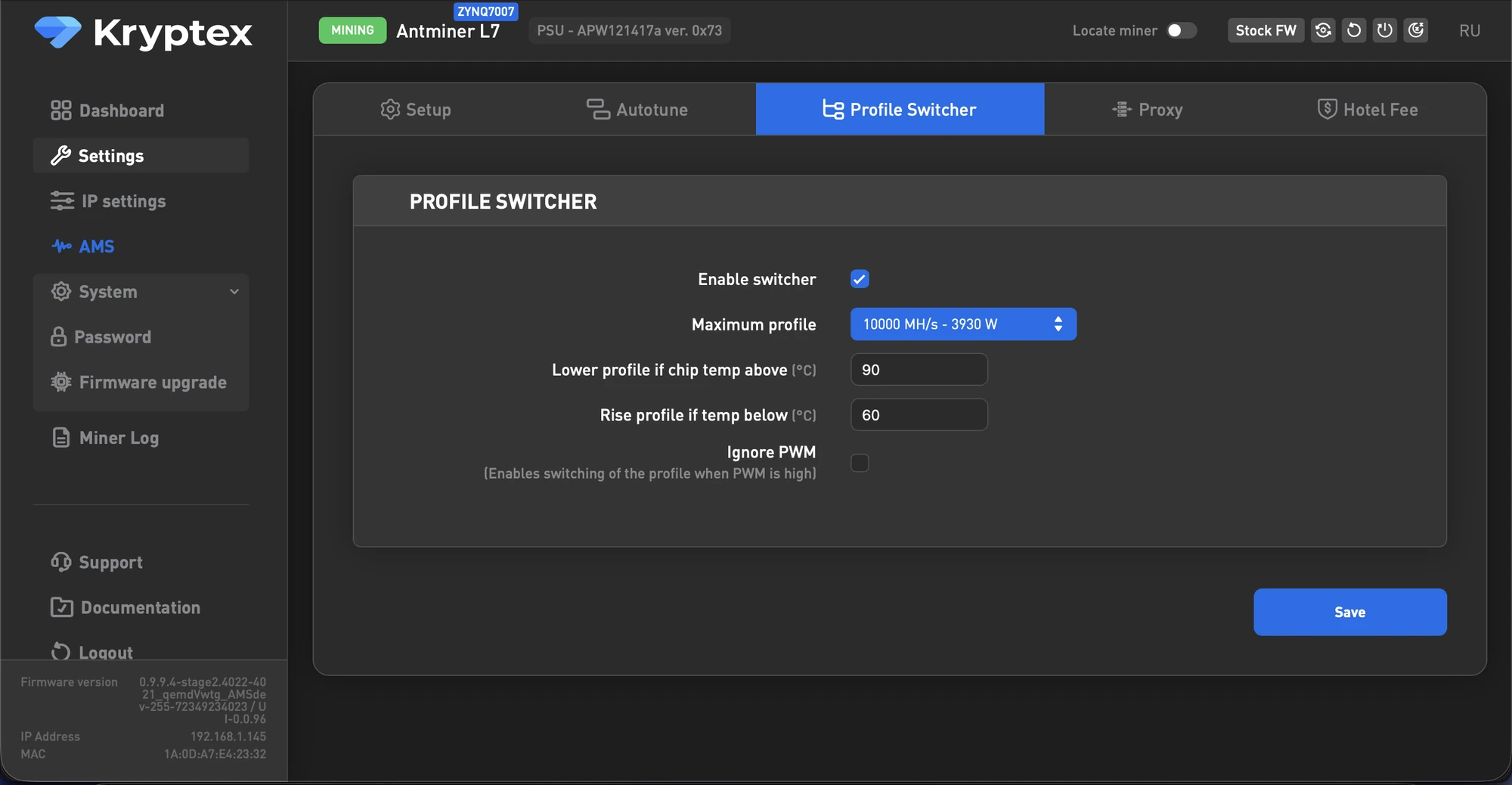
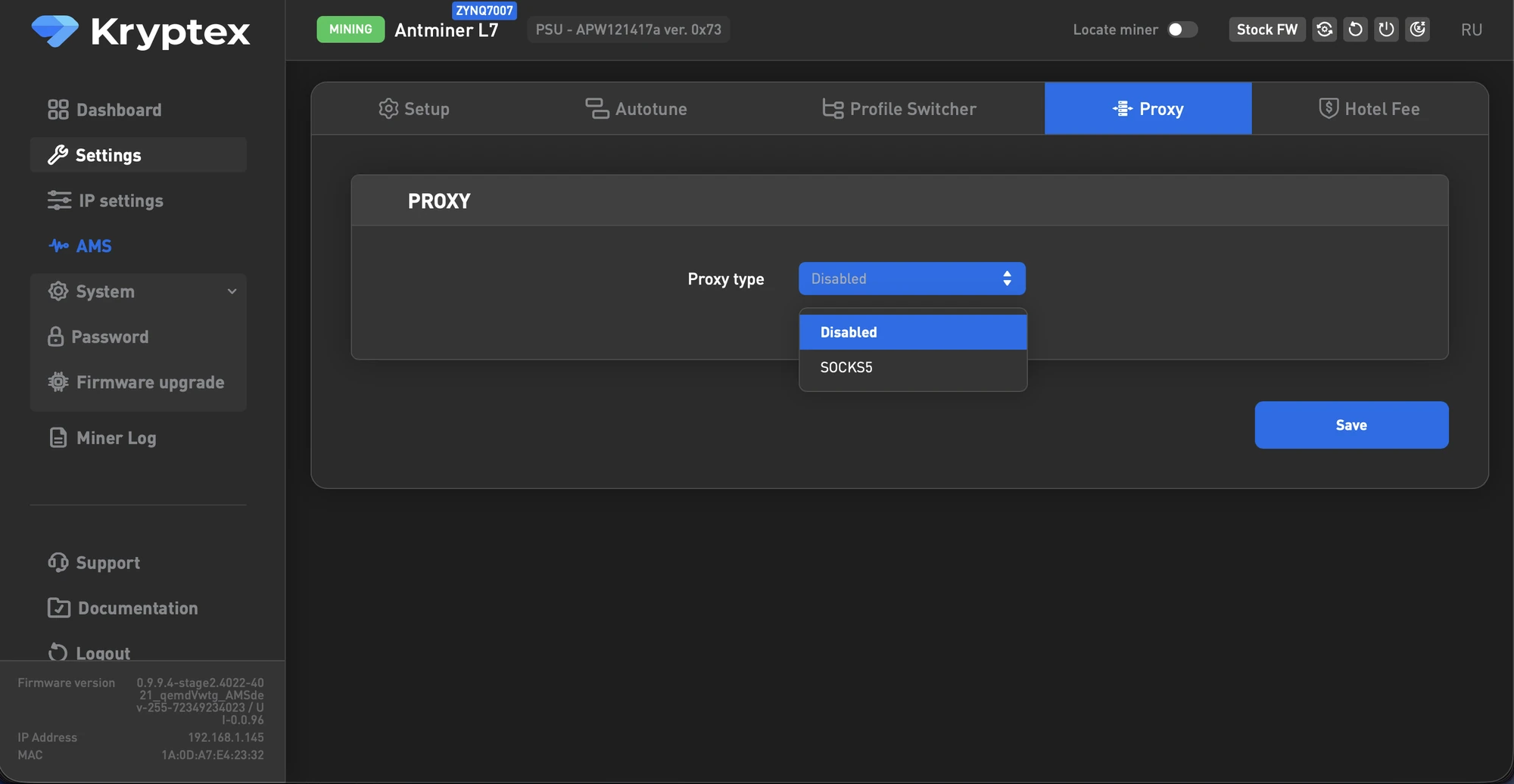
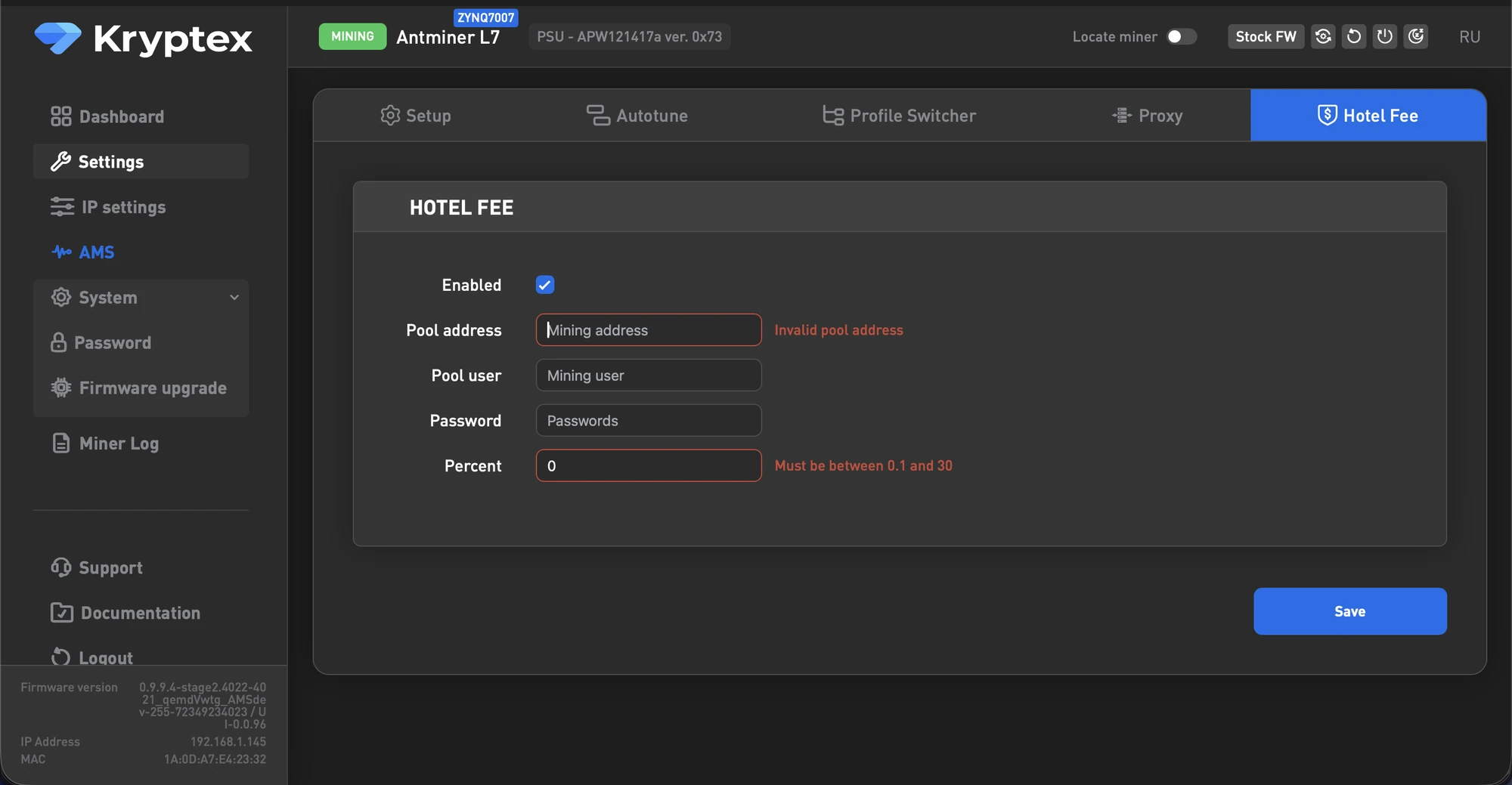
Overclocking profiles, switcher, and proxy — choose a performance profile, enable automatic switching, and run through a proxy.
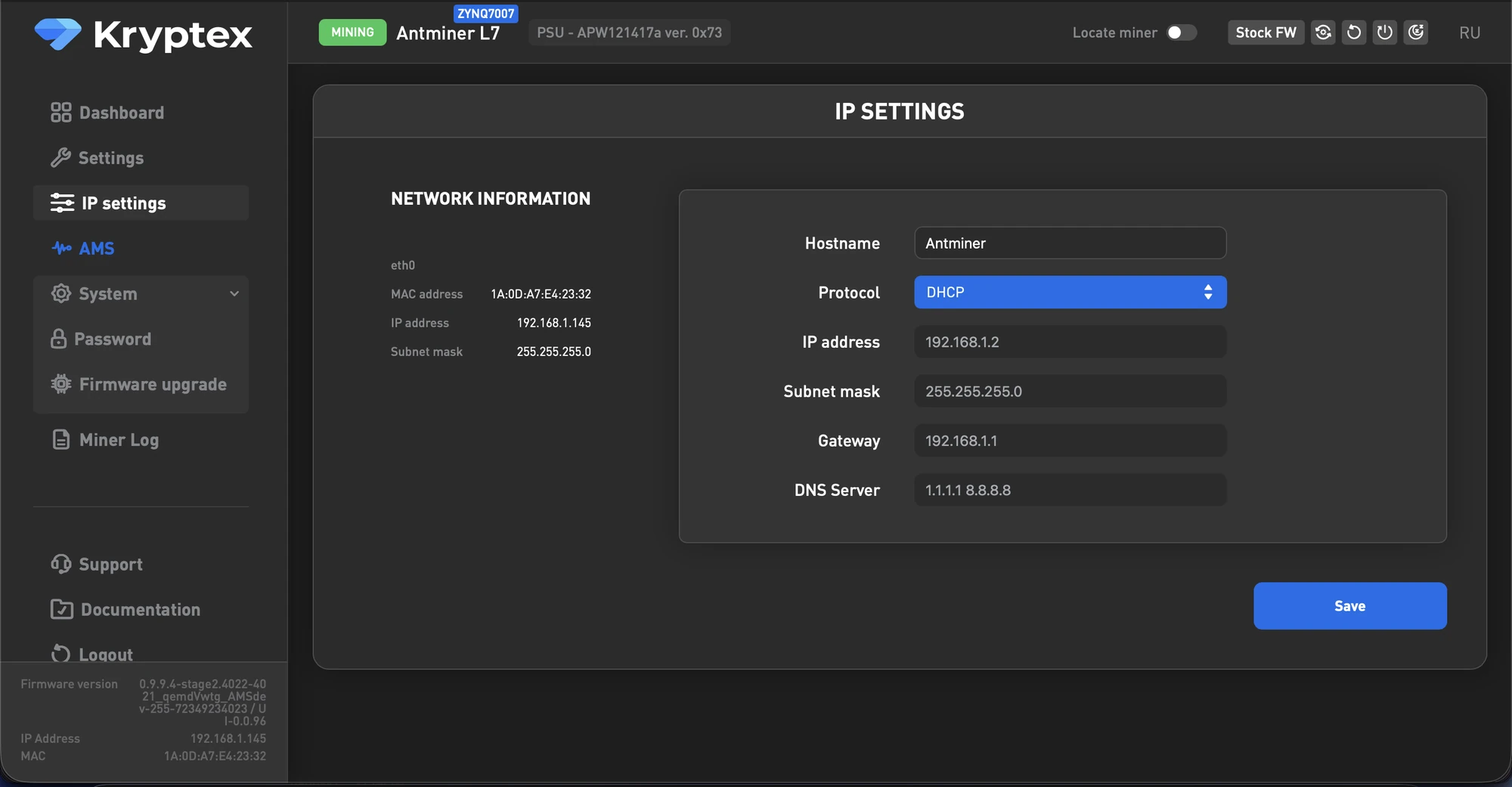
Network settings — the ASIC's network connection parameters.
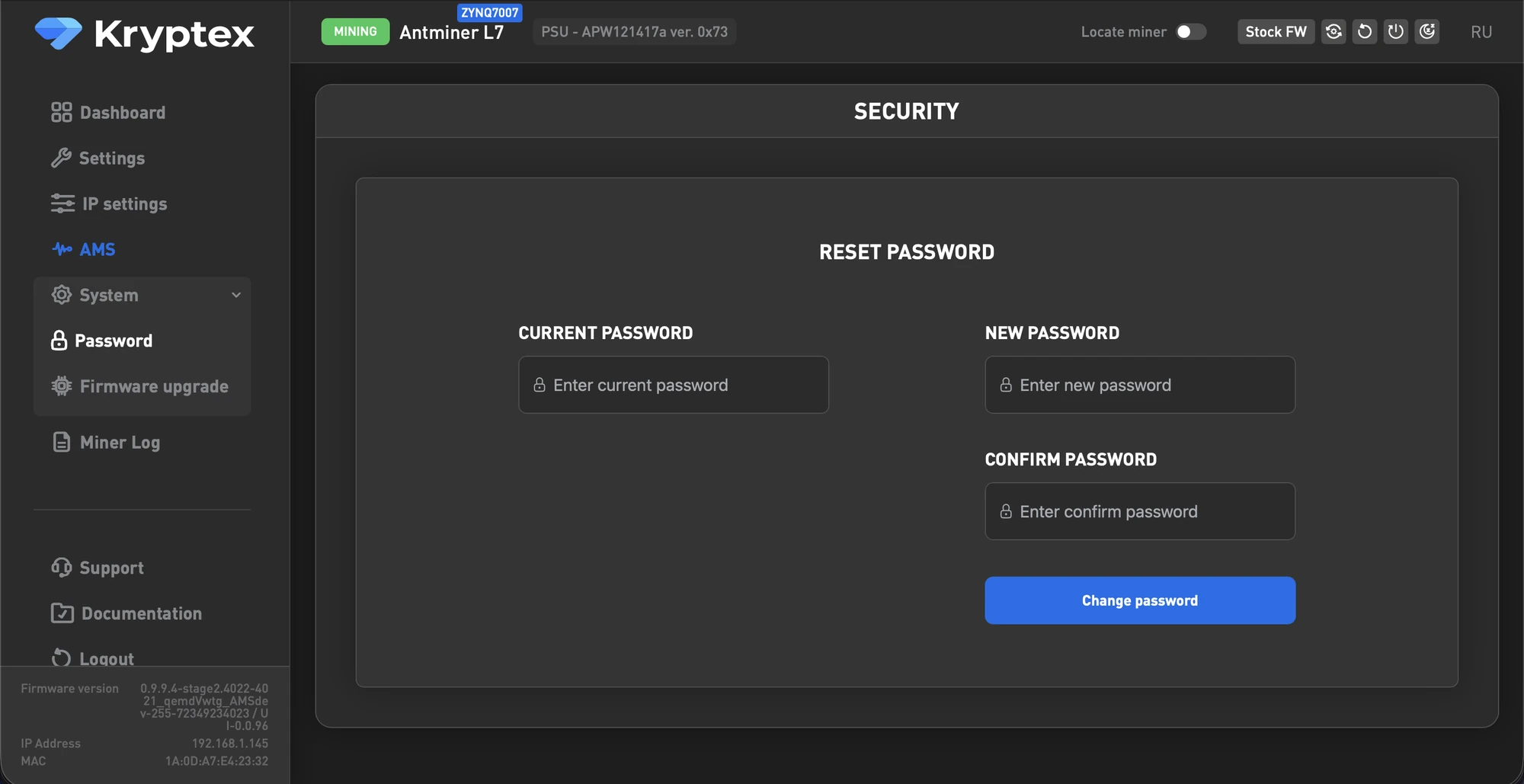
Security — change the ASIC login password.
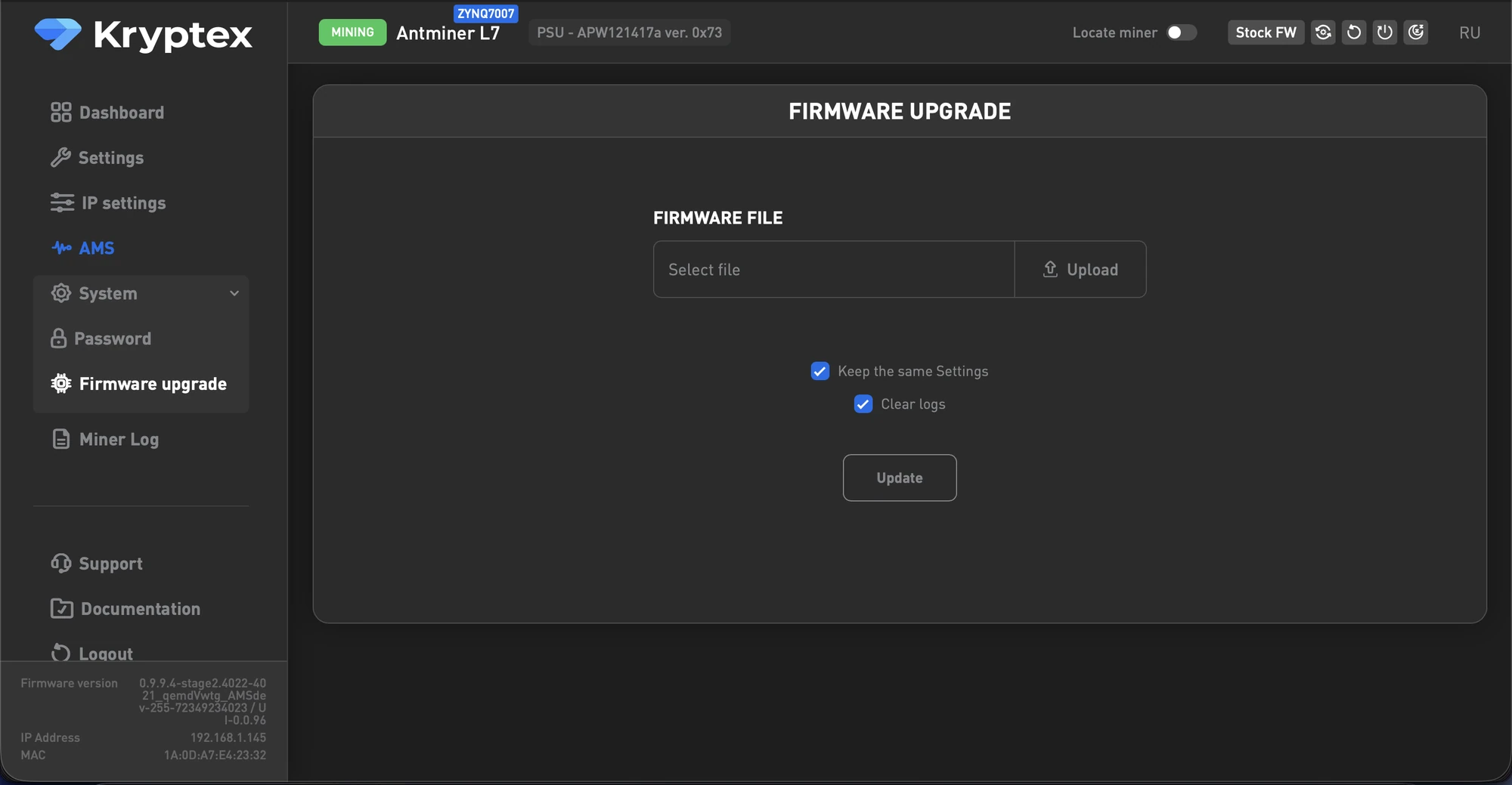
Firmware update — install a different firmware from the web interface.
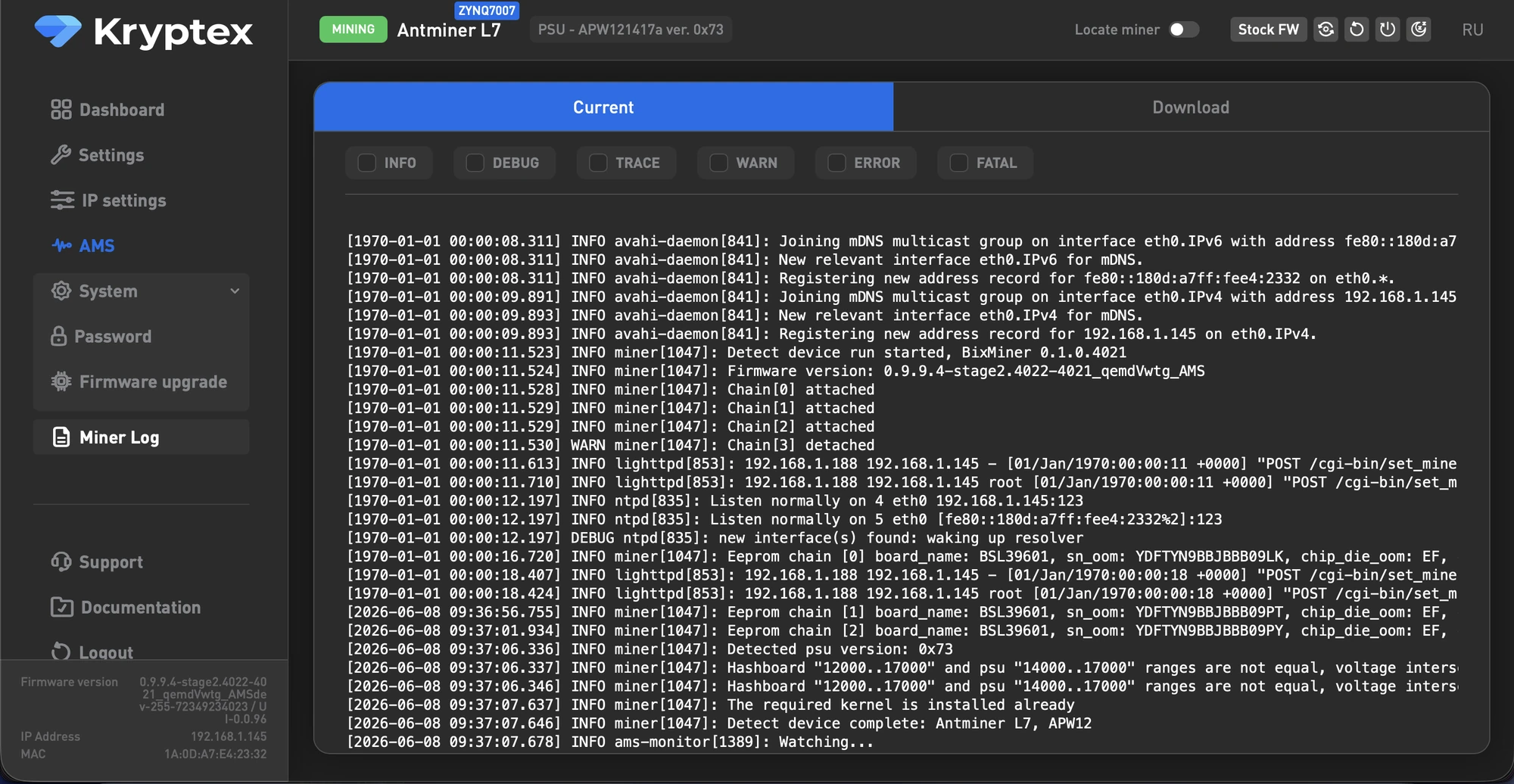
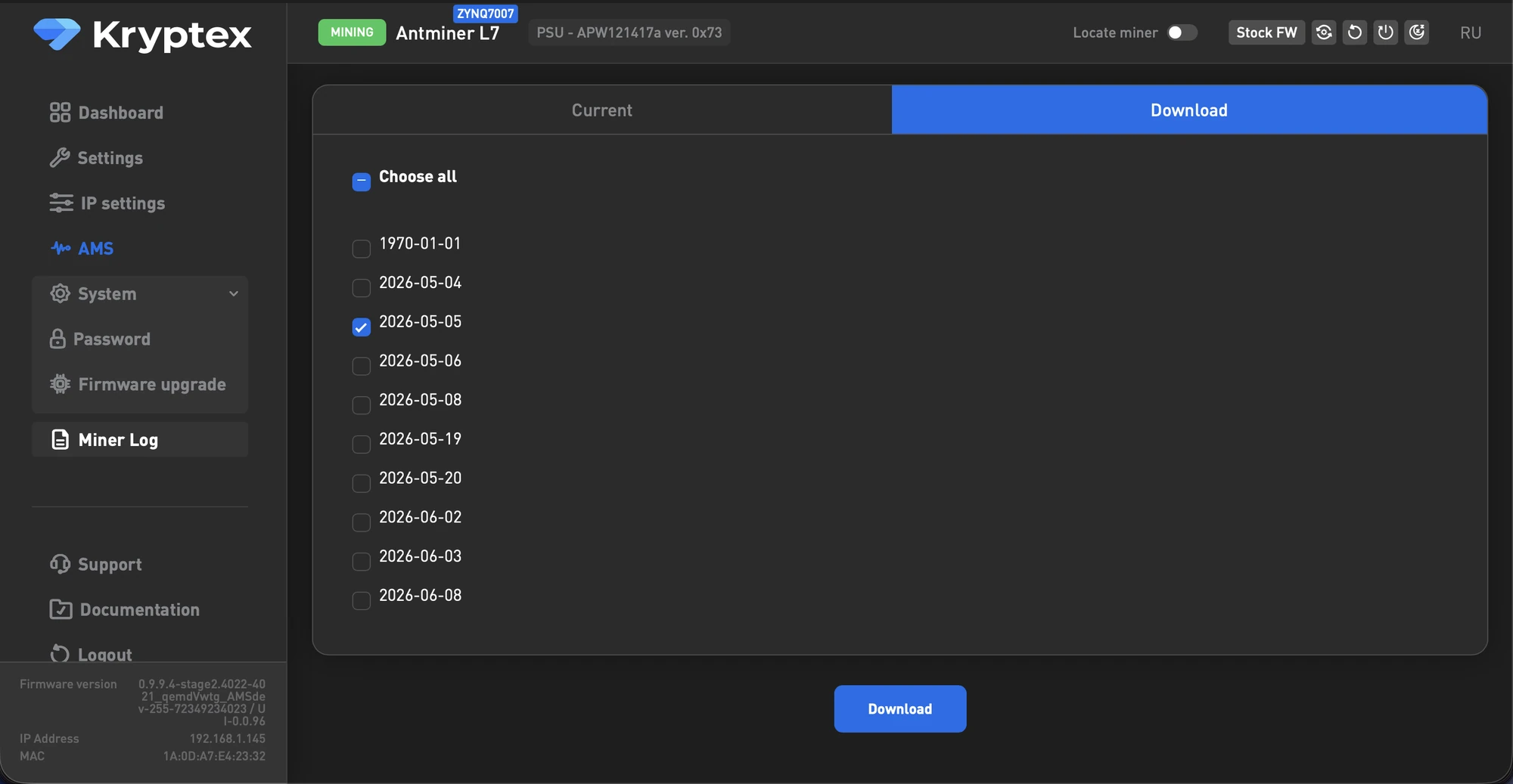
Miner log — detailed device logs.
Miner management — reboot, stop, and other device actions.

Remote Management with BiXBiT x Kryptex AMS
BiXBiT x Kryptex AMS is a free system for remote monitoring and management of ASICs. It works with any firmware and lets you watch your entire fleet from a single dashboard: view statistics, switch pools, organize devices into farms, and grant access to your team.
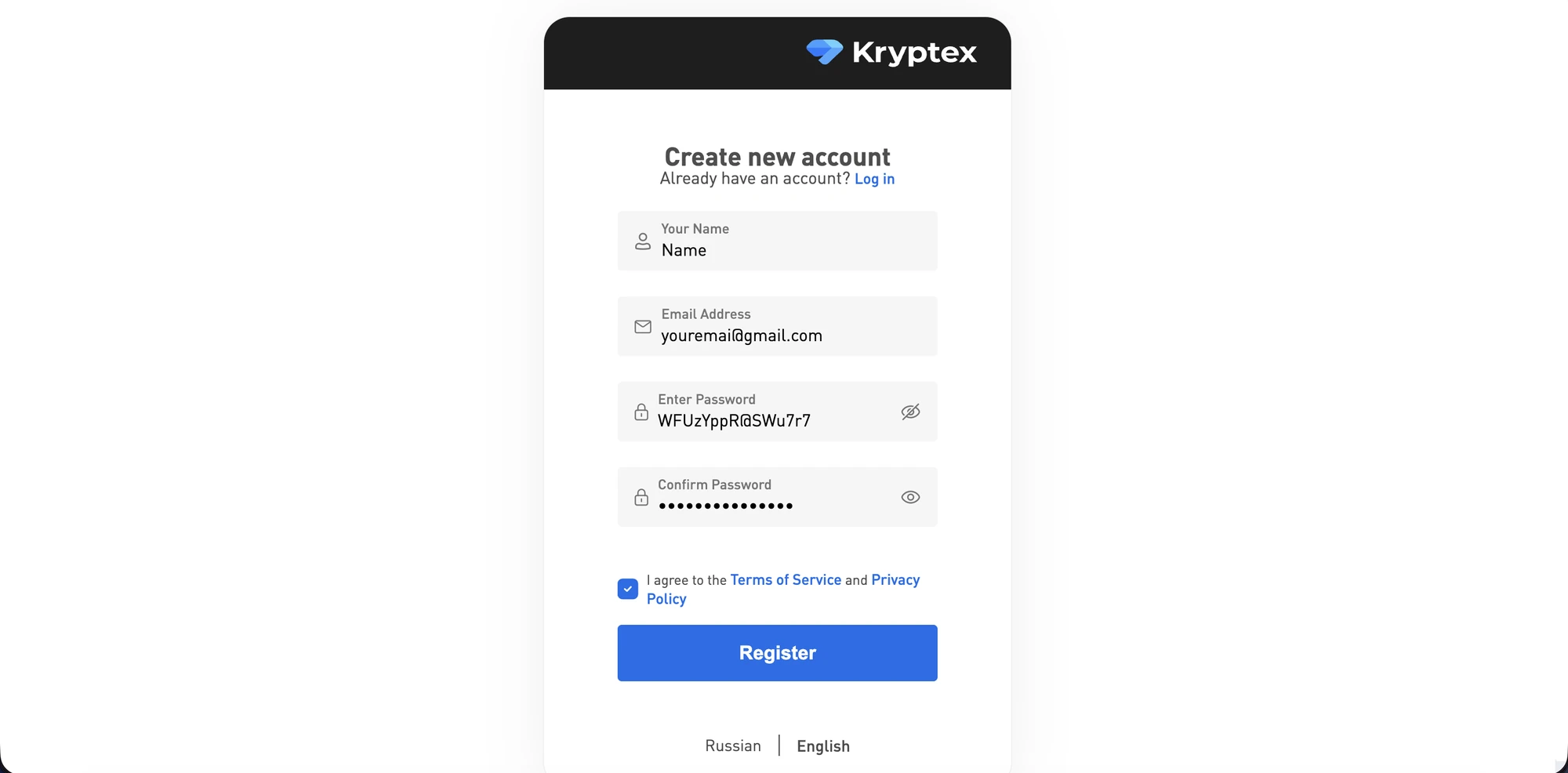
Register an AMS account and confirm your email.
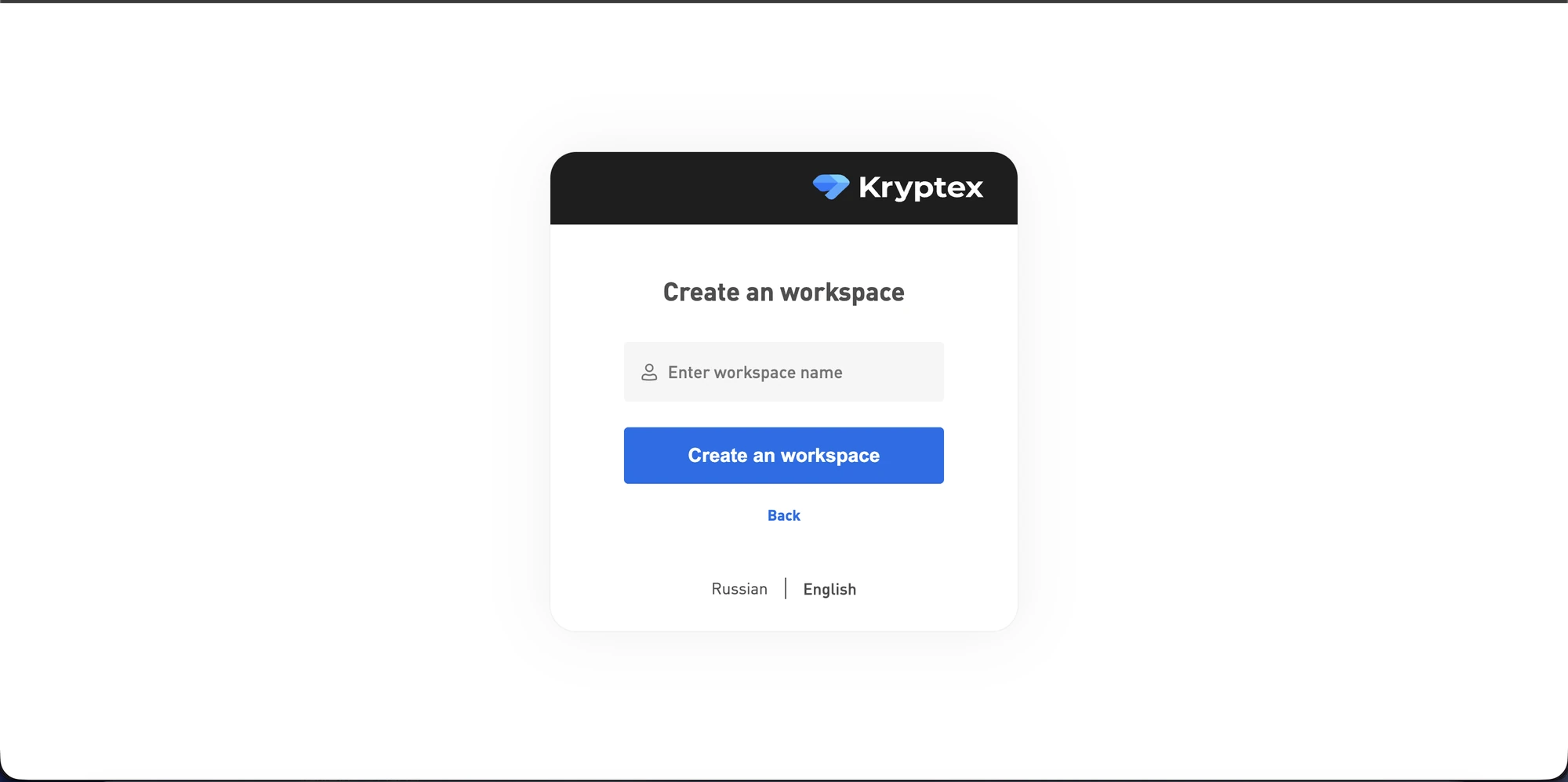
Add a workspace — you can give it any name.
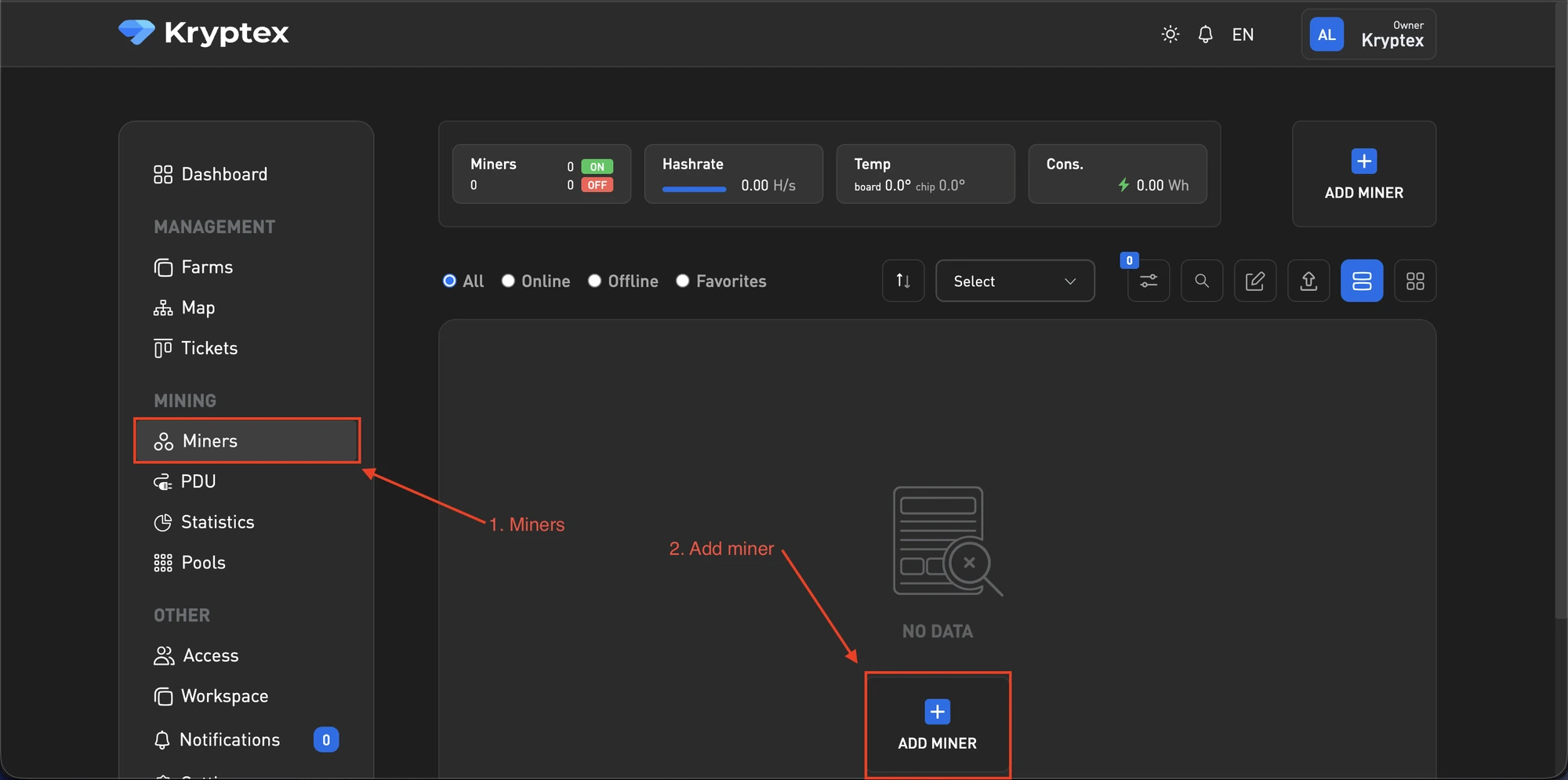
Add an ASIC.
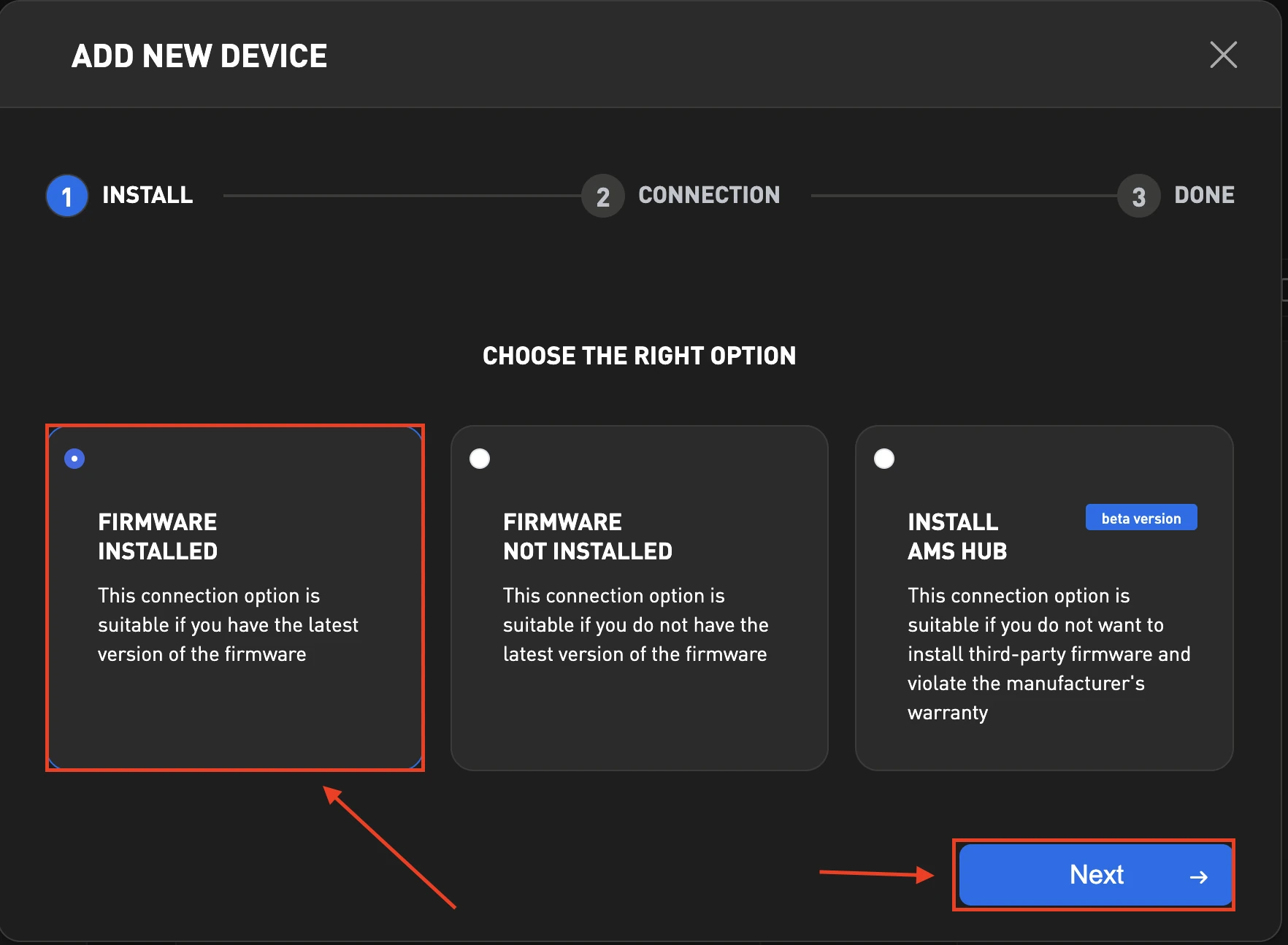
Select “firmware installed” and click “next”.
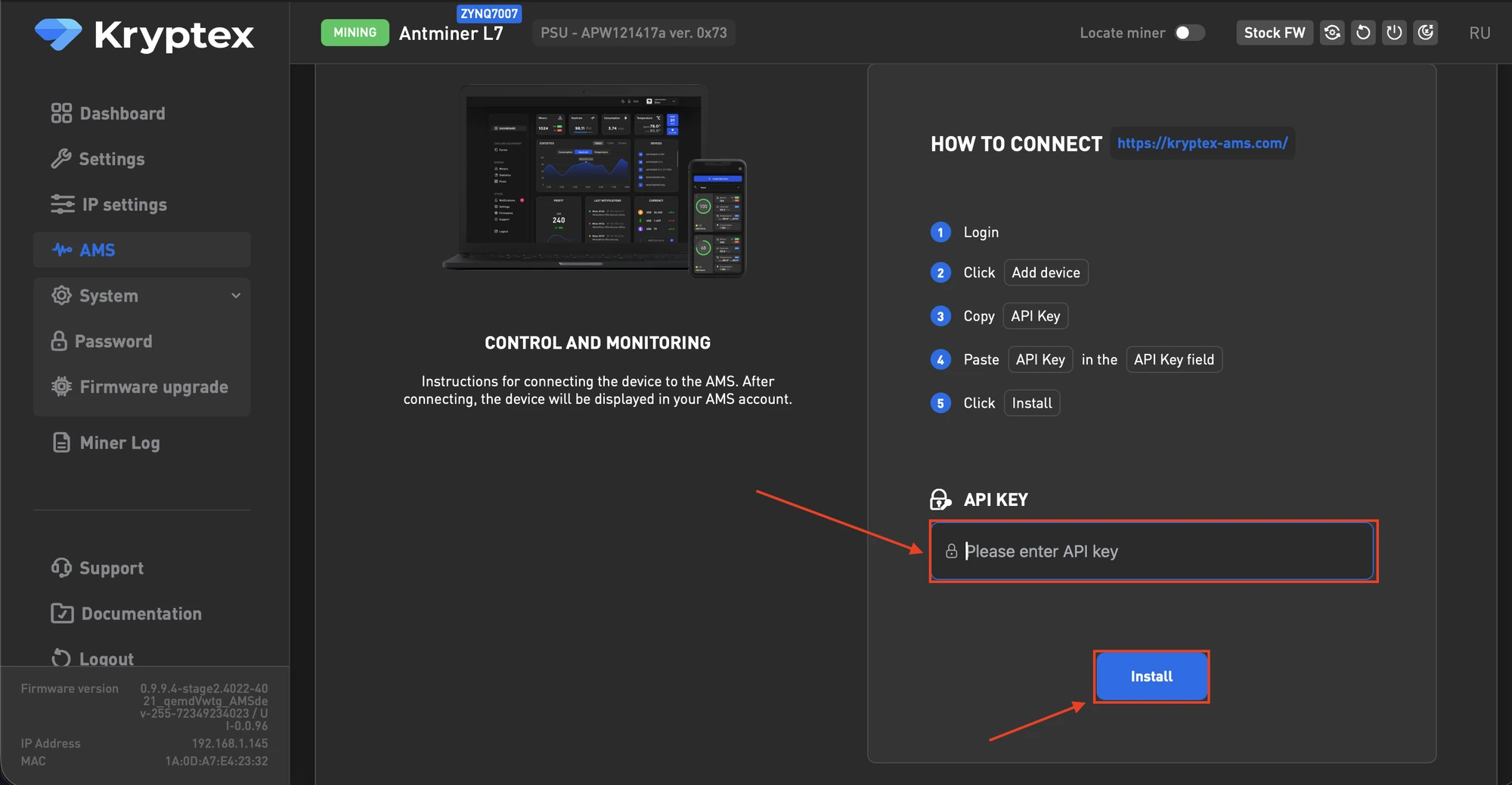
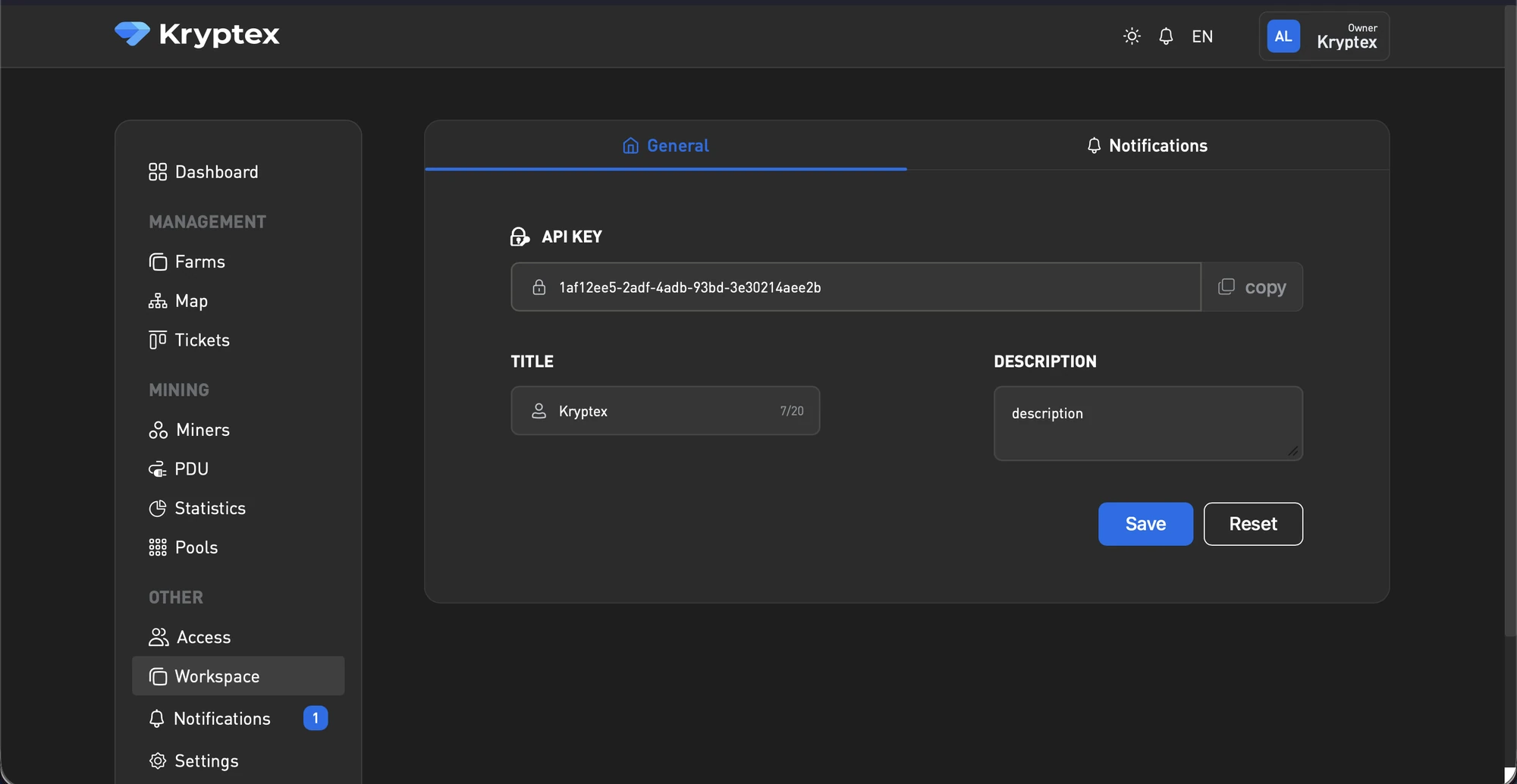
Copy the API key.
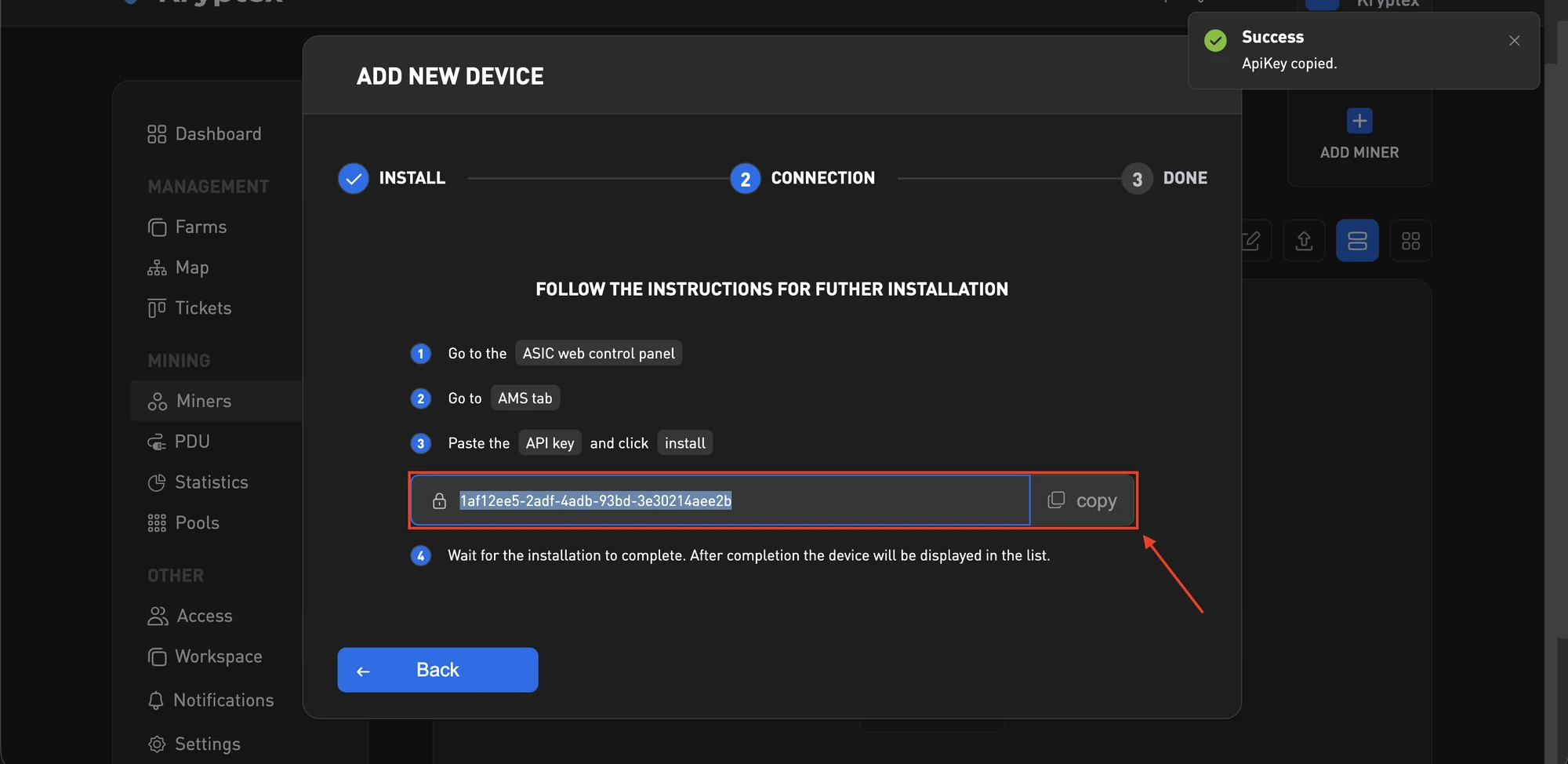
Open the ASIC web interface, paste the key, and click “install”.
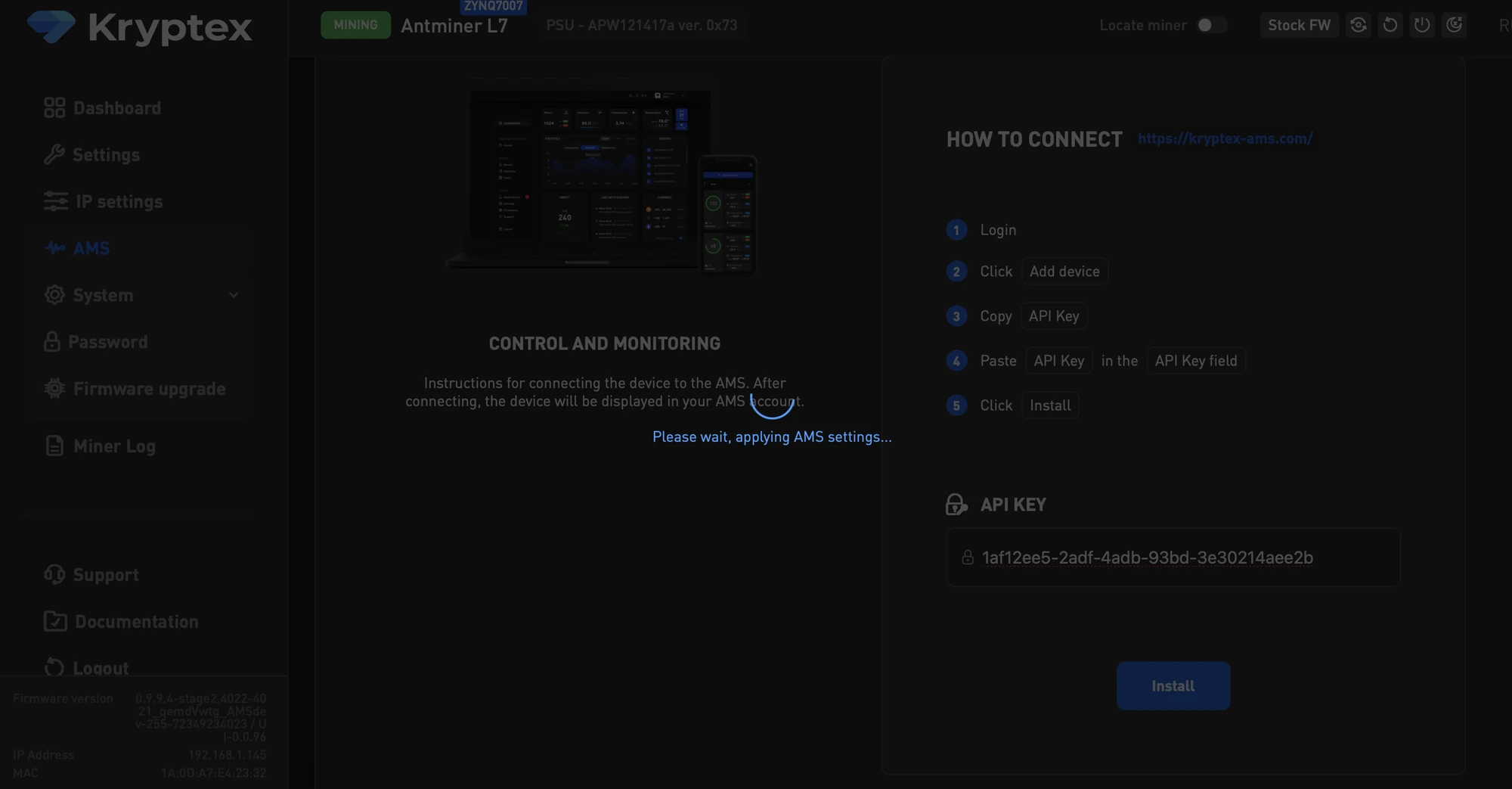
Wait for it to finish — the process takes 1 to 3 minutes.
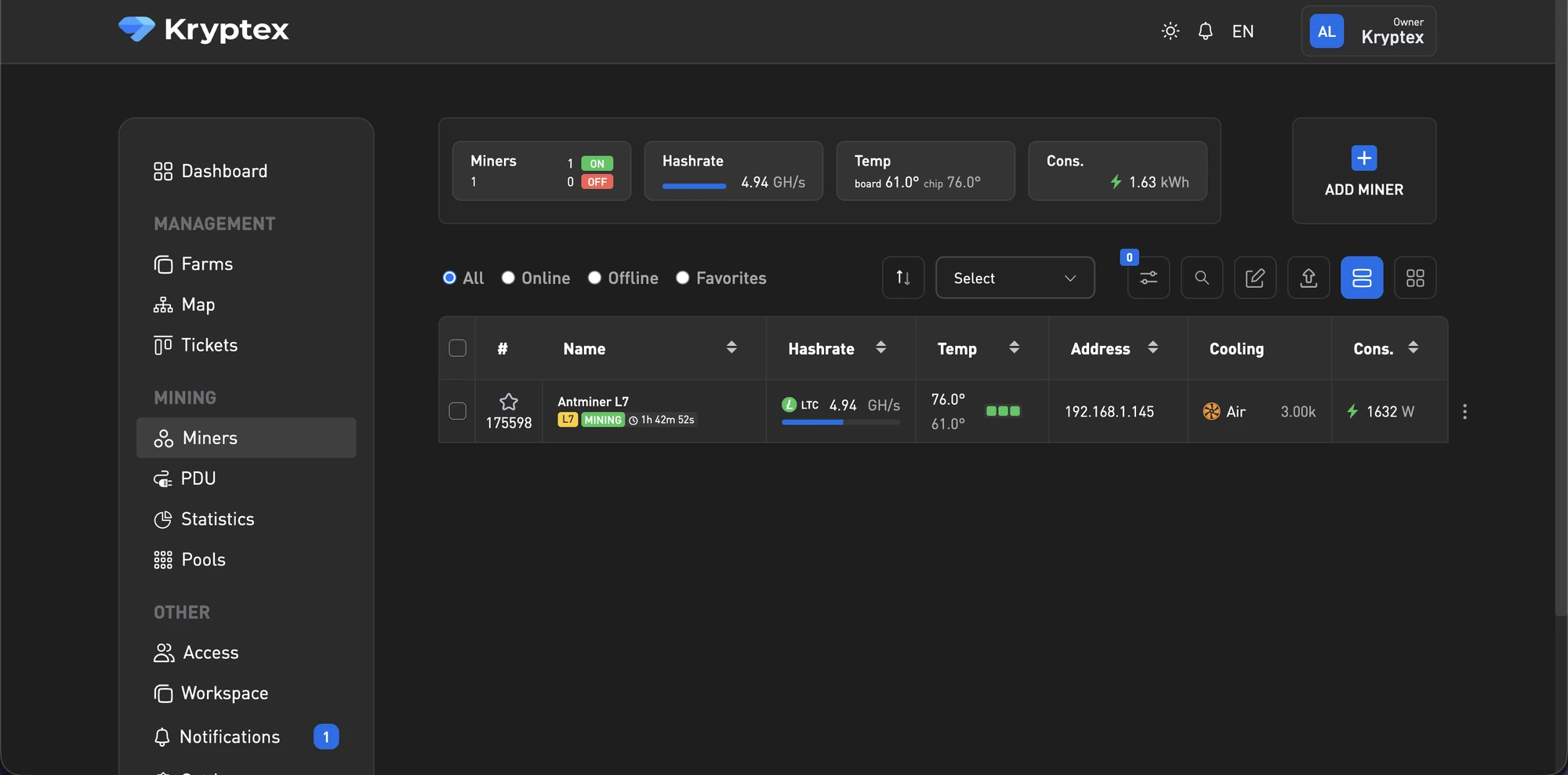
Done — the ASIC is added and shows up in AMS.
BiXBiT x Kryptex AMS Features
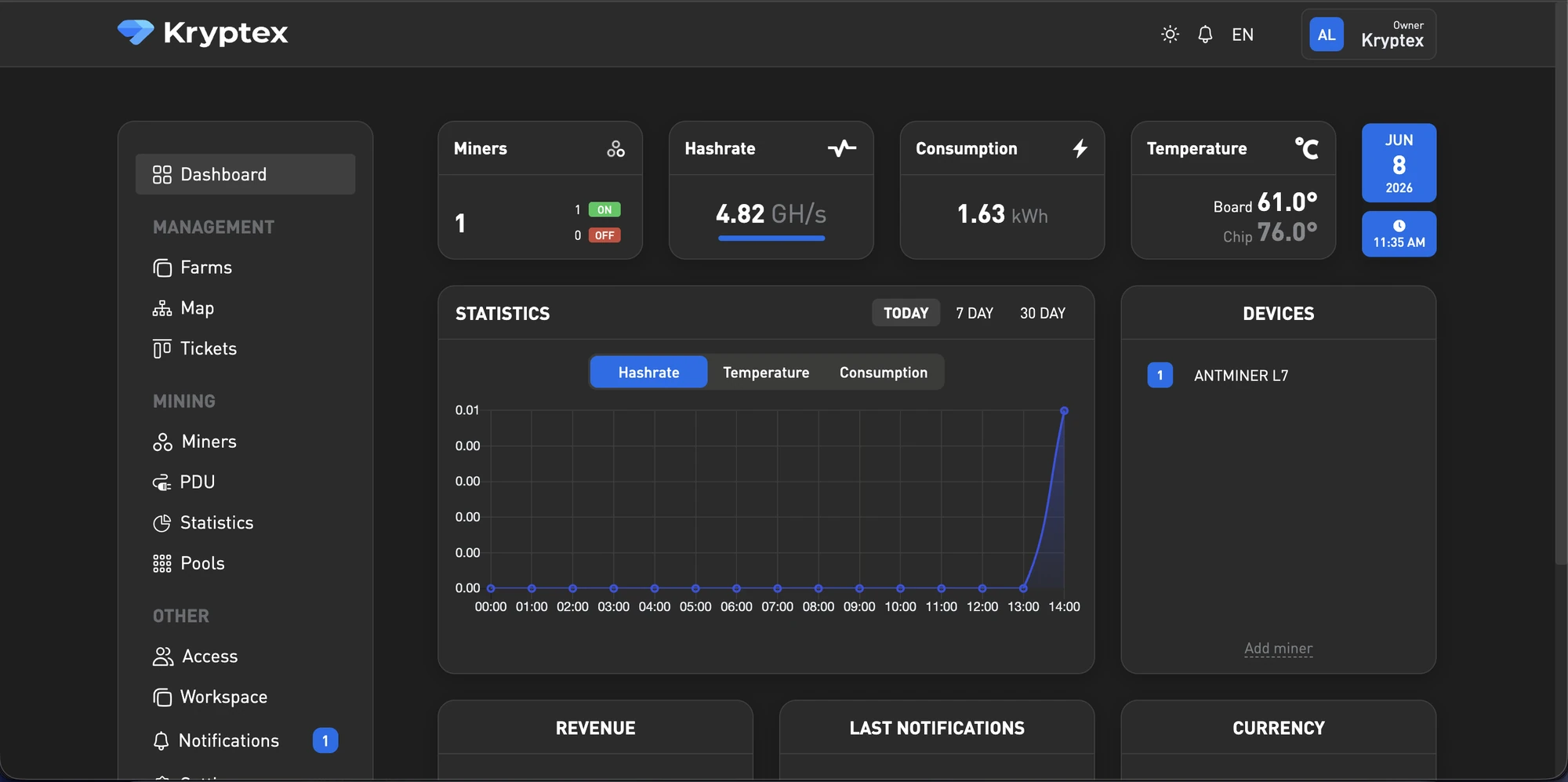
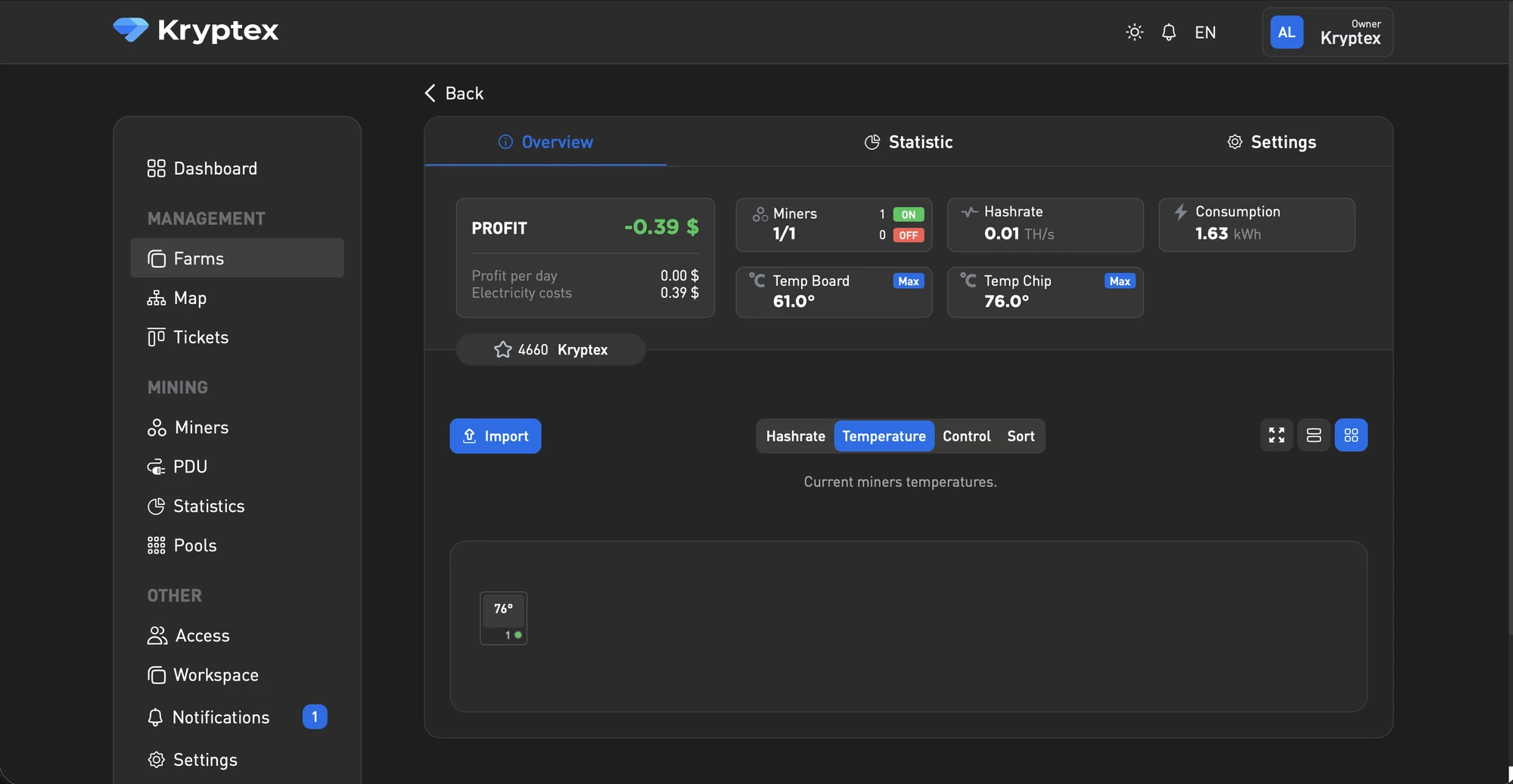
Dashboard — shows the ASICs' key metrics.
Farms — create farms and add devices, neatly split by location or owner. You can set a per-kWh price for each location.
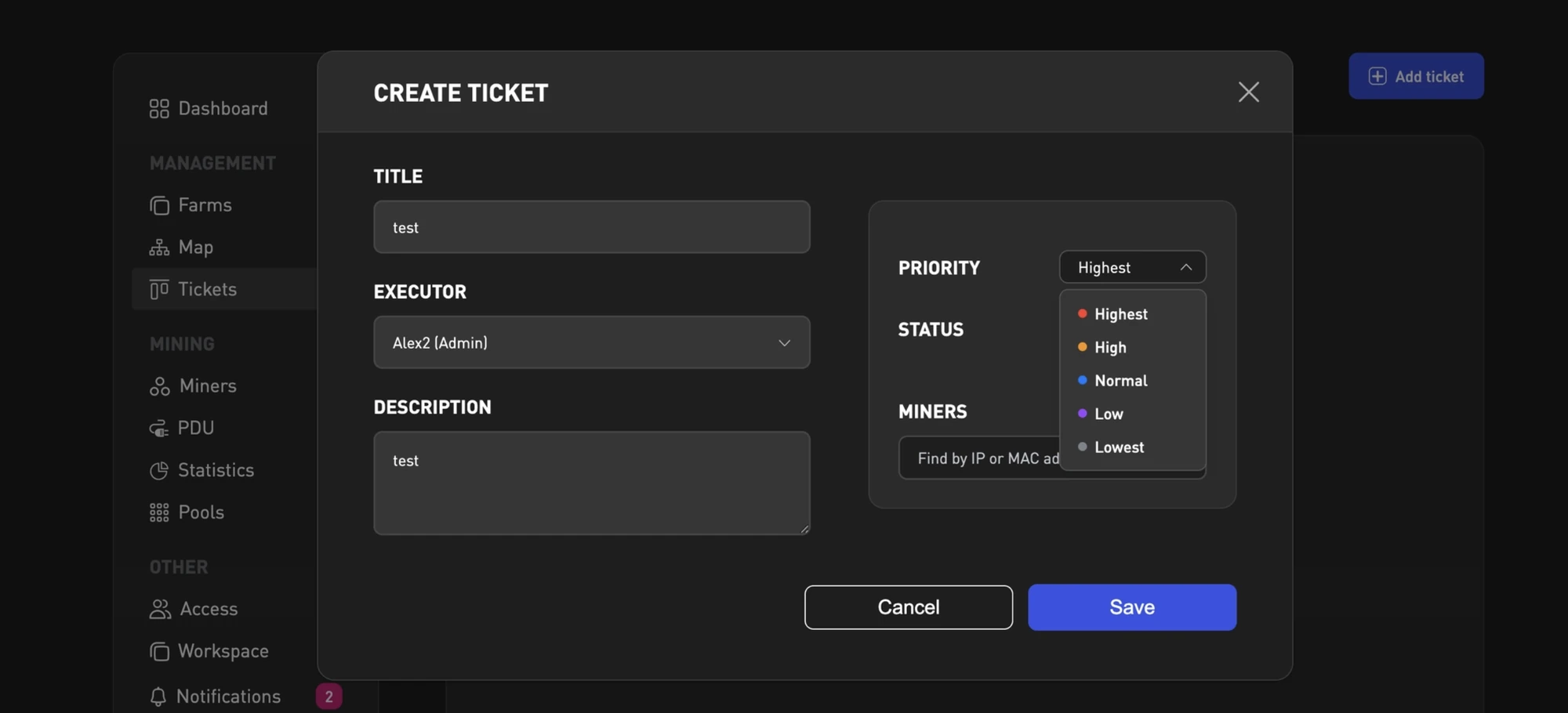
Tickets — create tasks for your team.
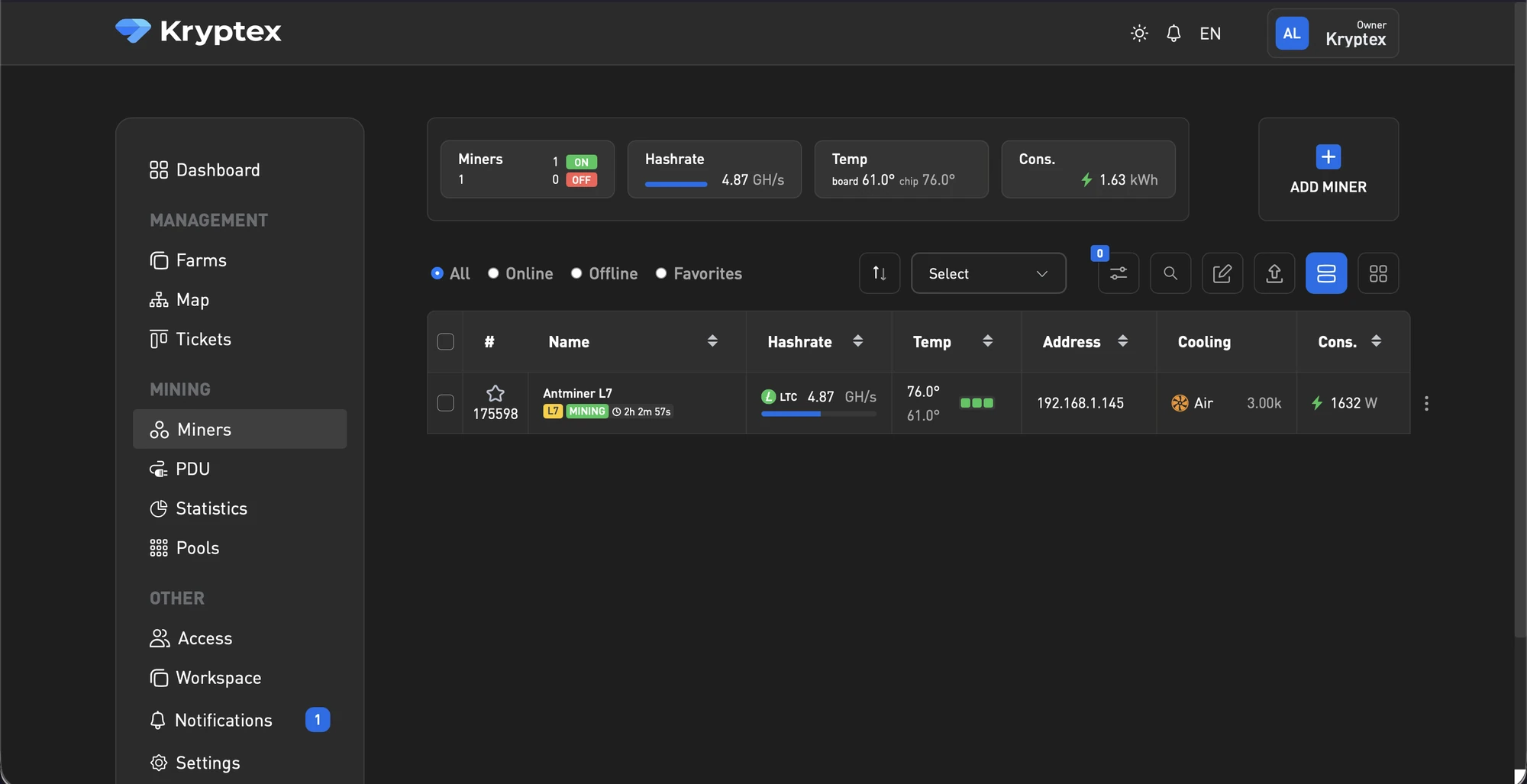
Miners — every device connected to the account, with controls to manage them.
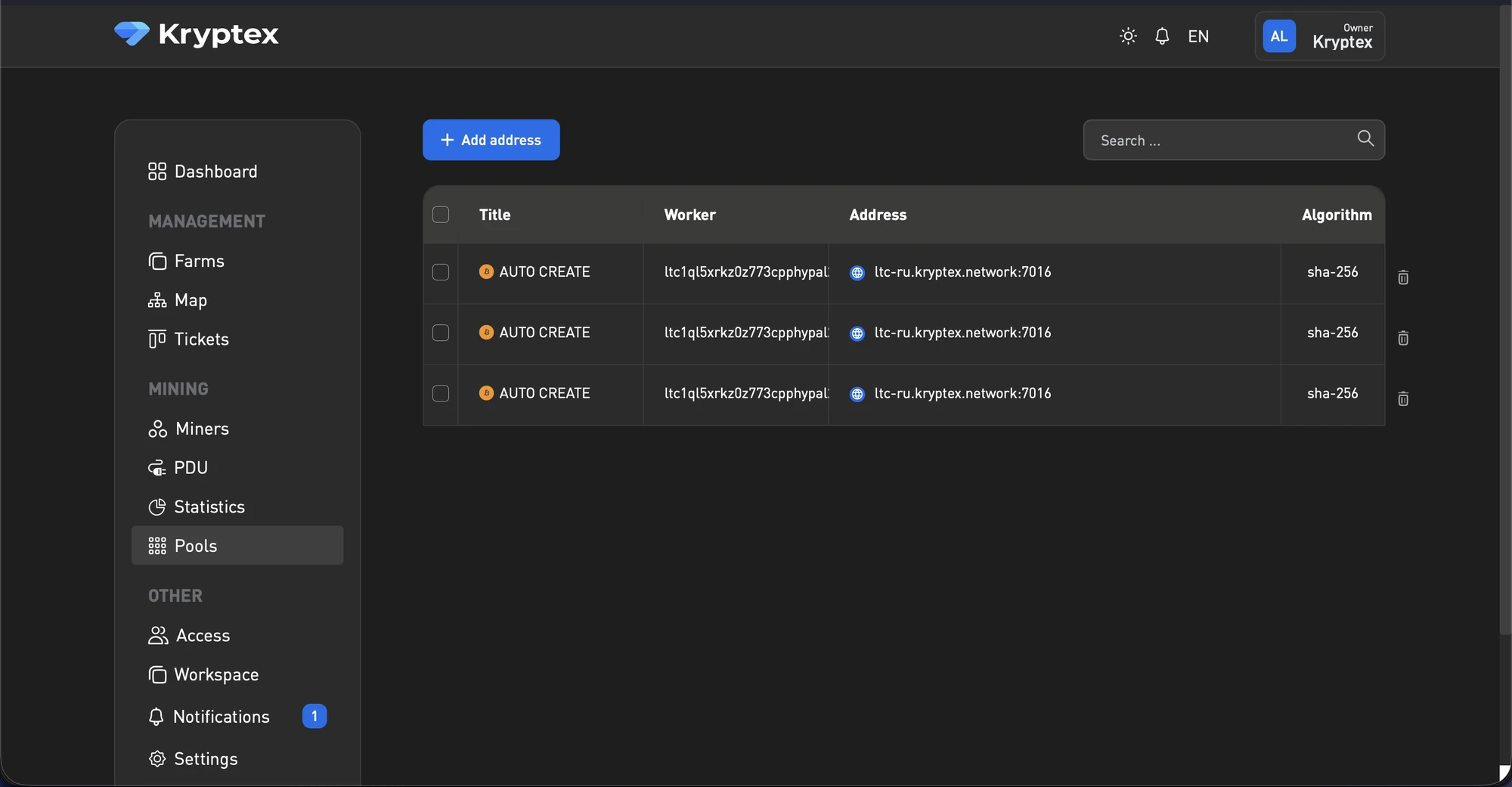
Pools — add pools and switch between them.
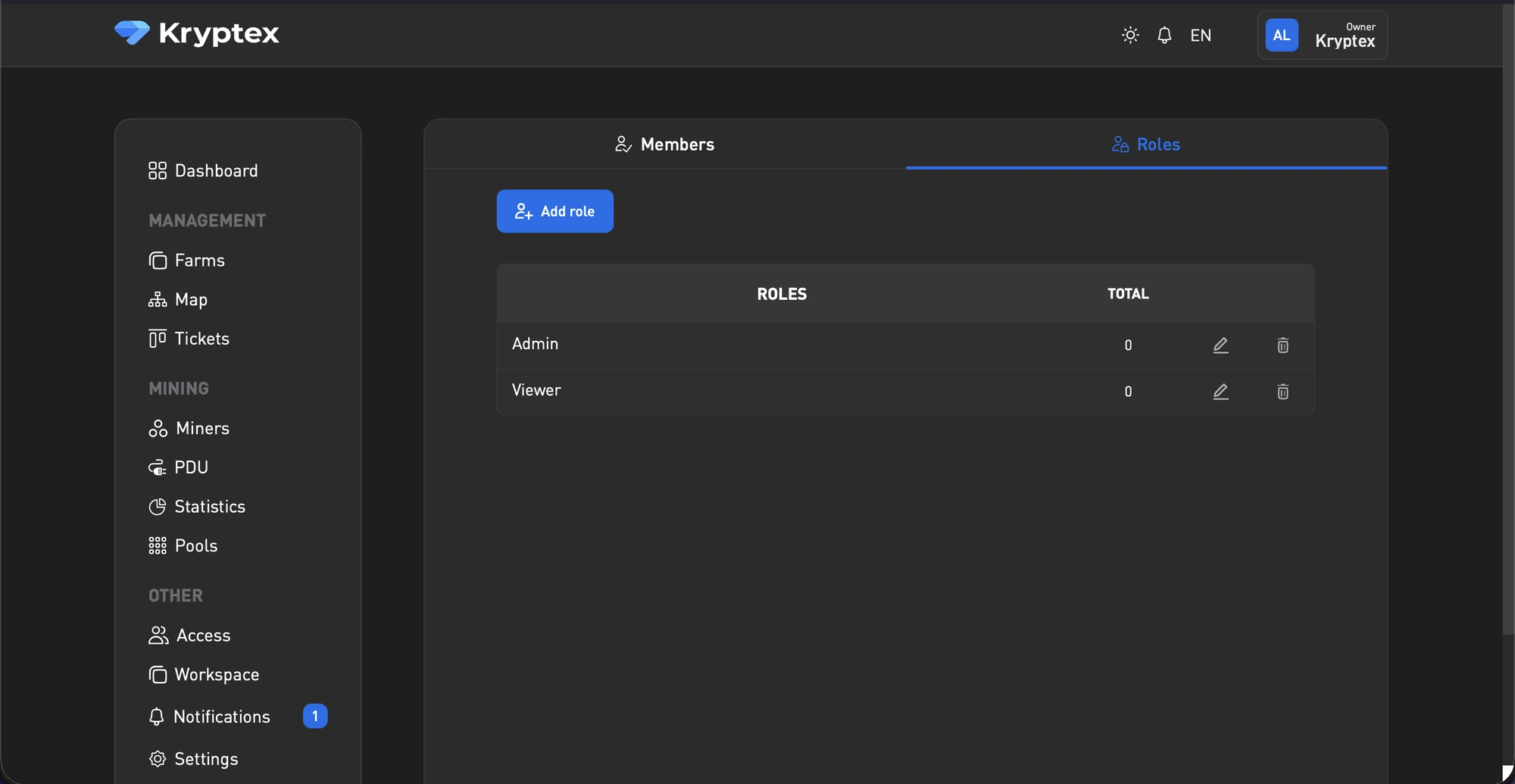
Roles — fine-grained access control: invite team members and grant them permissions.
Workspace — set the farm name and link miners via API.
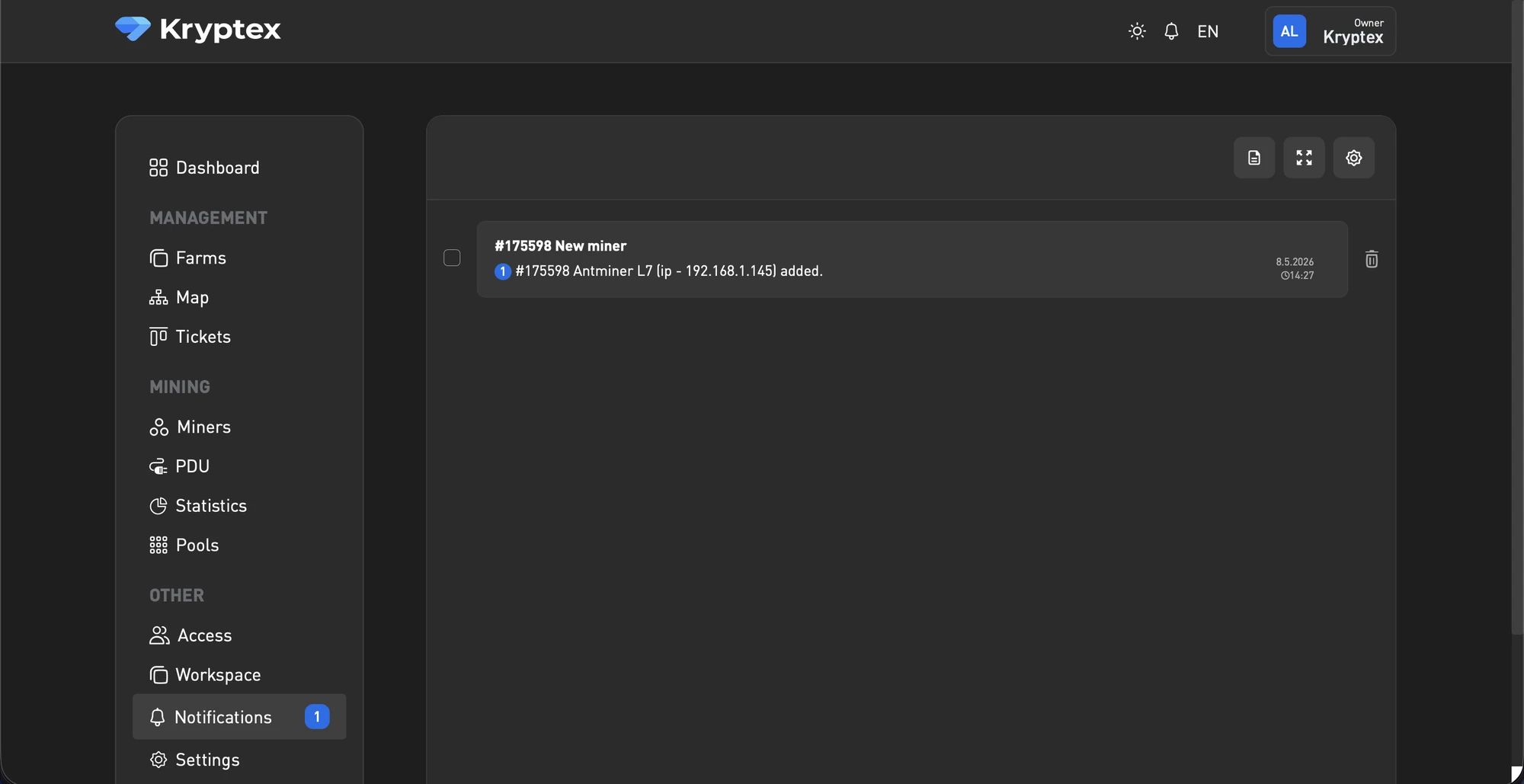
Notifications — all notifications sent by your devices.
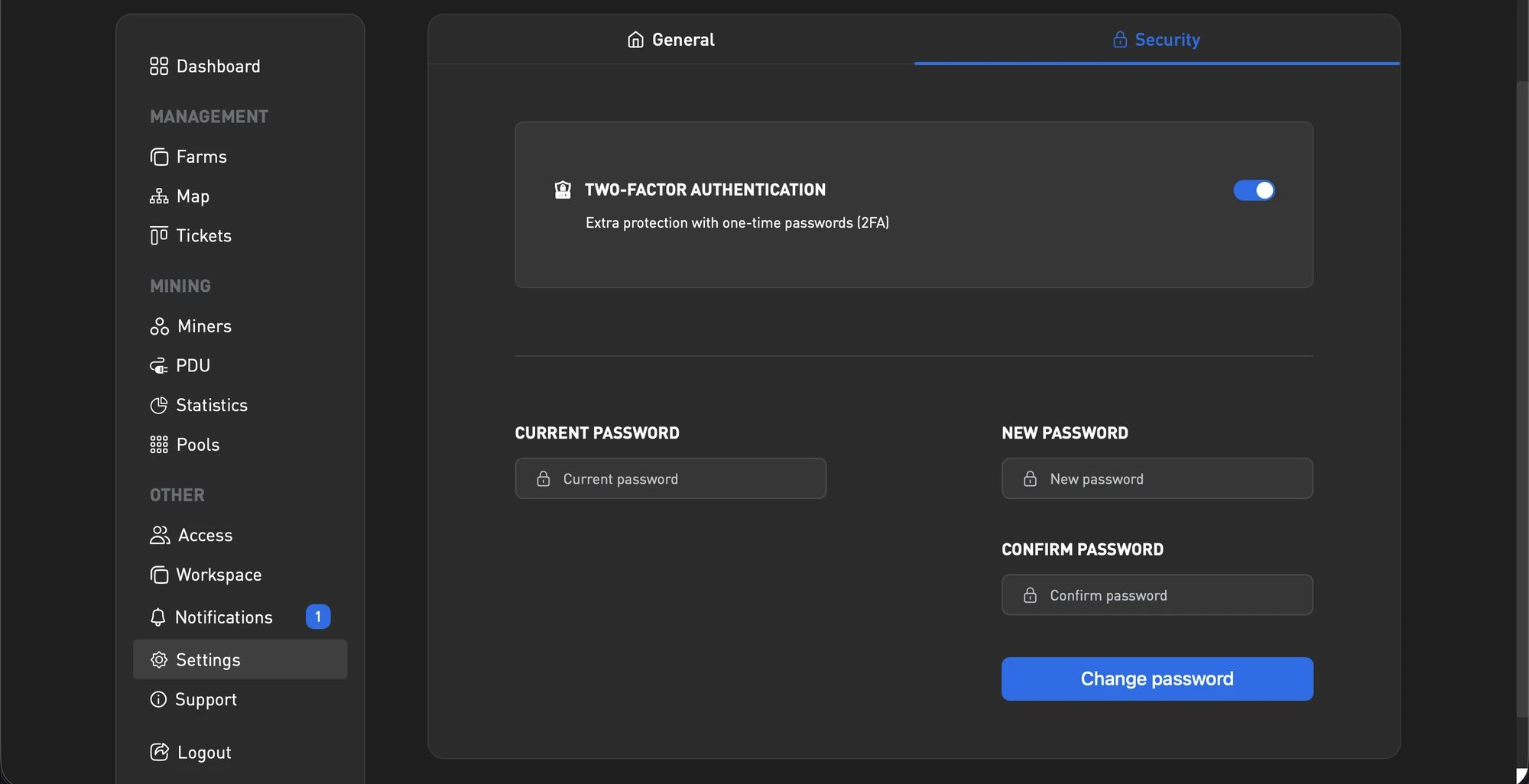
Account settings — change your name, email, and set up 2FA.
Support — a quick jump to the support bot on Telegram.
Need Help?
Have any questions, something unclear, or trouble connecting?
Contact support — we're happy to assist!
- Support Ticket.
- Telegram Support.
- Discord Support.
- Email support at support@kryptex.com.