ASIC Innosilicon ZMaster A9, A9+, A9++
13.05.2026
The Innosilicon ZMaster A9, A9+, and A9++ series is a clear example of how Equihash mining hardware evolved — starting from the compact and affordable A9 to the powerful A9++, capable of competing with Bitmain’s solutions such as the Antminer Z11. Each new version improved hashrate and efficiency while maintaining roughly the same power consumption.
Today, these devices are outperformed by newer models like the Bitmain Z15 and Z15 Pro. However, with cheap electricity and proper configuration, they can still be profitable for mining Zcash.
- A9 — the first base model. Compact, relatively quiet, but weak by modern standards. Hashrate: 50 kH/s, power consumption: 620W.
- A9+ — the first major upgrade, essentially two A9 units combined. Balanced in power and performance. Hashrate: 120 kH/s, power consumption: 1550W.
- A9++ — the flagship of the series. Maximum performance at the same power draw as the A9+. At the time, it became popular among miners as a competitor to Bitmain’s Z11. Hashrate: 140 kH/s, power consumption: 1550W.
Kryptex Pool is the top choice for mining Zcash (ZEC), offering full support for Innosilicon ZMaster ASICs, high efficiency, and stable profitability.
⛏️ Start mining Zcash ZEC — https://pool.kryptex.com/zec
🔗 Zcash ZEC Pool URLs:
- Global:
stratum+tcp://zec.kryptex.network:7042 - EU:
stratum+tcp://zec-eu.kryptex.network:7042 - US:
stratum+tcp://zec-us.kryptex.network:7042 - SG:
stratum+tcp://zec-sg.kryptex.network:7042 - RU:
stratum+tcp://zec-ru.kryptex.network:7042
Worker — your Zcash ZEC wallet address.
Example: t1ScU9R3YoZWPwwrm2jGSZtTpHKk9tw6ahU.A9
For SOLO mining, add solo: before your wallet address in the ASIC settings
Example: solo:t1ScU9R3YoZWPwwrm2jGSZtTpHKk9tw6ahU.A9
Innosilicon ZMaster A9, A9+, A9++— Specifications and Size
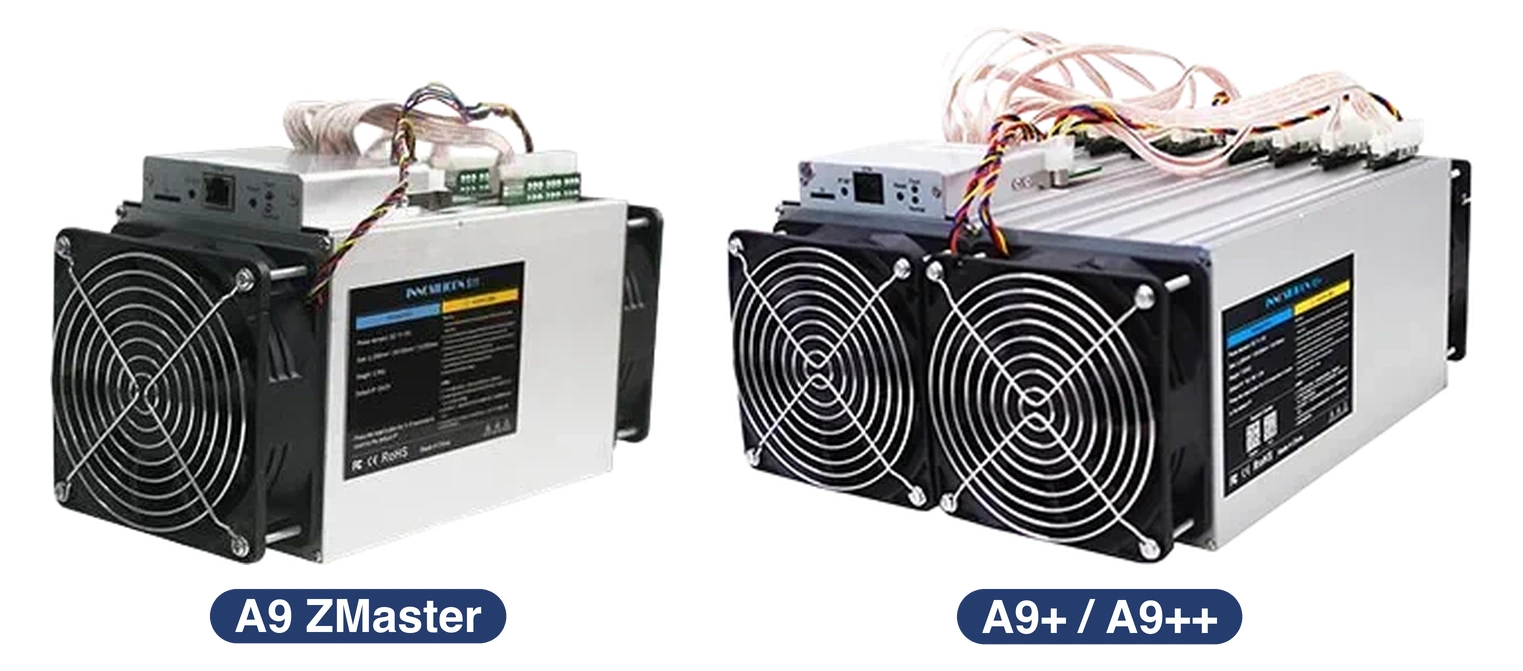
| Model | Algorith | Coin | Hashrate | Consumption | Dimensions | Weight |
|---|---|---|---|---|---|---|
| A9 | Uquihash | ZEC | 50 kH/s (±10%) | 620 Watt (±10%) | 25 × 15,5 × 36 | 5,5 kg |
| A9+ | Uquihash | ZEC | 120 kH/s (±10%) | 1550 Watt (±10%) | 36 × 25 × 15,5 | 10 kg |
| A9++ | Uquihash | ZEC | 140 kH/s (±10%) | 1550 Watt (±10%) | 36 × 25 × 15,5 | 10,2 kg |
Innosilicon ZMaster A9, A9+, A9++ Hashrate
The hashrate of Innosilicon ZMaster A9 ASICs ranges from 50 kH/s to 140 kH/s, depending on the model.
The entry-level Innosilicon ZMaster A9 delivers 50 kH/s on the ZEC Zcash (Equihash) algorithm.
The flagship Innosilicon ZMaster A9++ achieves 140 kH/s on the ZEC Zcash (Equihash) algorithm.
What Can You Mine with the Innosilicon ZMaster A9, A9+, A9++
All Innosilicon ZMaster A9 models are designed to mine coins that use the Equihash algorithm, such as Zcash (ZEC).
These ASICs are not compatible with other mining algorithms.
Innosilicon ZMaster A9, A9+, A9++ Profitability
Profitability depends on network difficulty, the current coin price, and your electricity cost. We recommend to check the actual profitability in our mining calculator, where you can also calculate the profitability including your electricity costs.
| Model | Hashrate | Consumption |
|---|---|---|
| A9 | 50 kH/s (±10%) | 620 Watt (±10%) |
| A9+ | 120 kH/s (±10%) | 1550 Watt (±10%) |
| A9++ | 140 kH/s (±10%) | 1550 Watt (±10%) |
👉 Check the profitability of Innosilicon ZMaster A9++ ASIC on the mining calculator.
Innosilicon ZMaster A9, A9+, A9++ Settings
Prepare the Equipment:
- Plug the Innosilicon ZMaster A9 into a power outlet.
- Connect an Ethernet cable from your router to the ASIC device.
Power On the Device:
- Turn on the miner. You’ll hear the fans begin to run, indicating the device is active.
Find the Device's IP Address:
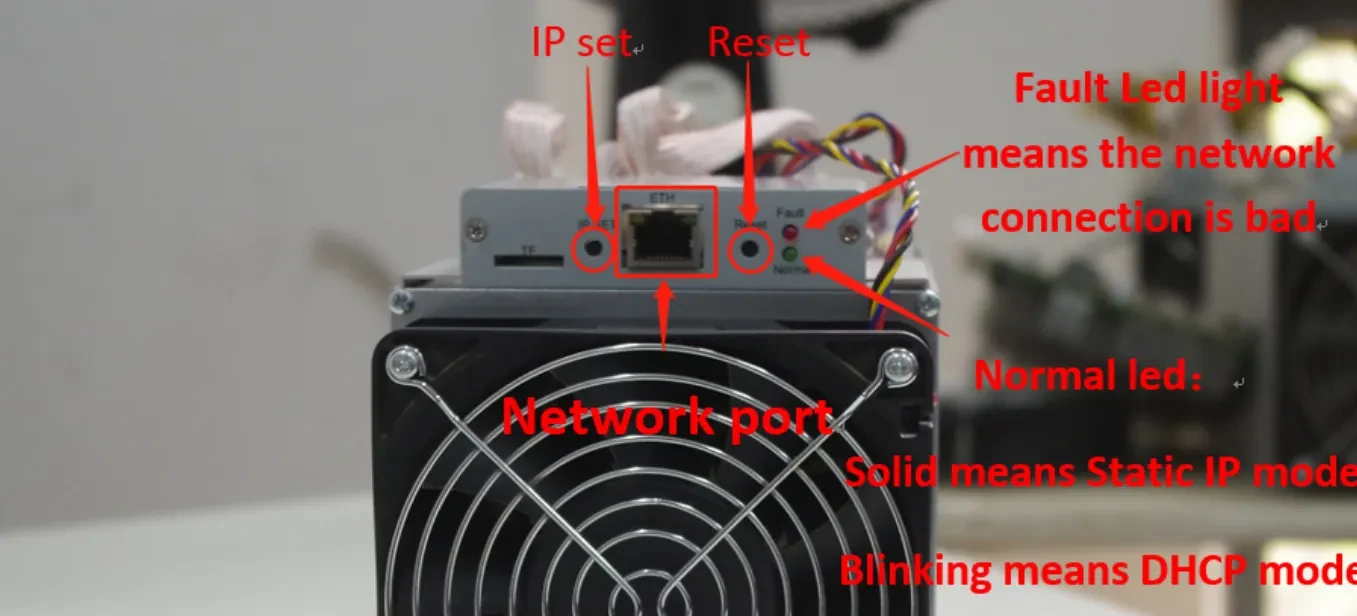
The green indicator should be blinking — this means the ASIC is operating in DHCP mode, and its IP address can be found in your router or with an IP scanning tool such as Advanced IP Scanner. If the indicator stays solid green without blinking, the ASIC is in static IP mode. To switch the IP detection mode, press and hold the “IP Set” button on the front panel of the ASIC for 5–15 seconds.
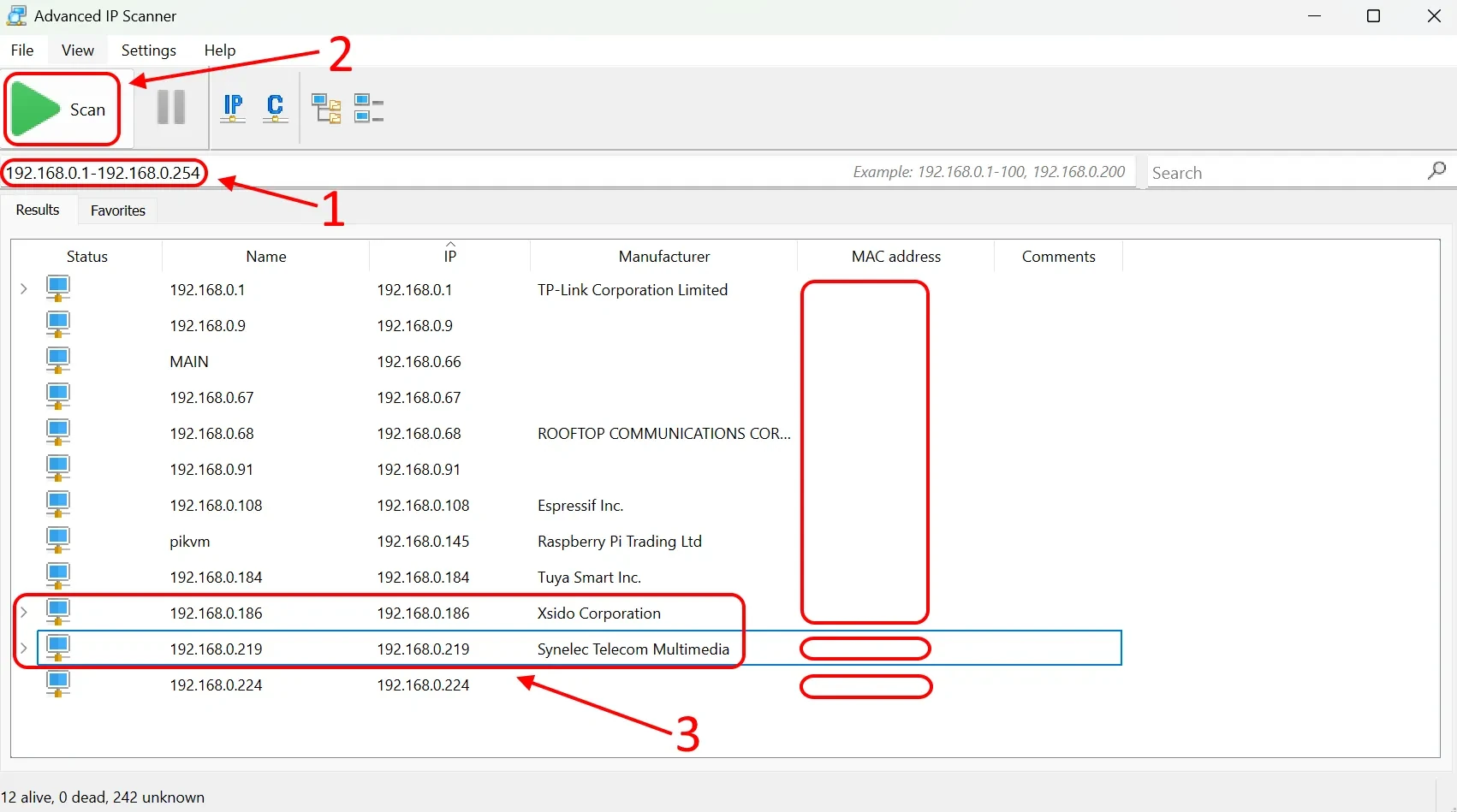
In the Advanced IP Scanner enter the range of IP addresses of your network (for example,
192.168.0.1-192.168.0.254).Click "Scan", wait for the scan to complete.
In the list of found devices, look for ASIC — it is usually defined as a device with the manufacturer's name, or an unknown device with open ports.
Access the Management Interface:
- Open a browser and enter the IP address you’ve located. This will direct you to the Innosilicon’s management interface.
- Log in using the default credentials (username:
admin, password:admin).
Configure Pool Settings:
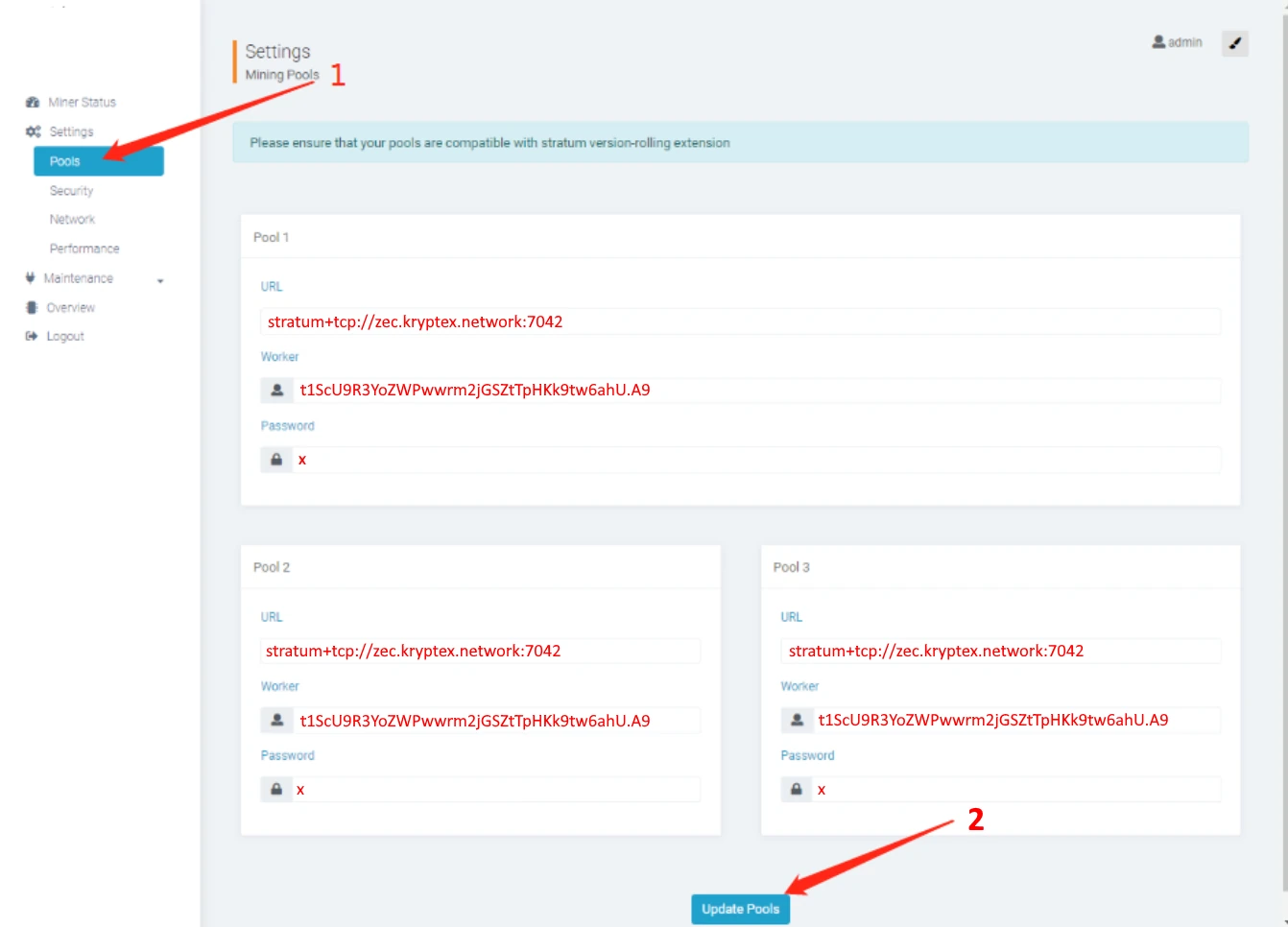
In the interface, navigate to the “Pools” section.
Enter the pool information (pool address, wallet address, and worker name).
Region URL Worker Password Global stratum+tcp://zec.kryptex.network:7042ZEC_WALLET_ADDRESS.WORKER_NAMExor leave blankEU stratum+tcp://zec-eu.kryptex.network:7042ZEC_WALLET_ADDRESS.WORKER_NAMExor leave blankUS stratum+tcp://zec-us.kryptex.network:7042ZEC_WALLET_ADDRESS.WORKER_NAMExor leave blankSG stratum+tcp://zec-sg.kryptex.network:7042ZEC_WALLET_ADDRESS.WORKER_NAMExor leave blankRU stratum+tcp://zec-ru.kryptex.network:7042ZEC_WALLET_ADDRESS.WORKER_NAMExor leave blankMiner Name — Specify wallet and worker name in the format
t1ScU9R3YoZWPwwrm2jGSZtTpHKk9tw6ahU.A9, where:t1ScU9R3YoZWPwwrm2jGSZtTpHKk9tw6ahUis your wallet address.A9is the name of your ASIC, written in Latin characters or numbers.- For SOLO mining, add
solo:before your wallet address in the ASIC settings. Example:solo:t1ScU9R3YoZWPwwrm2jGSZtTpHKk9tw6ahU.A9
Make sure to complete all three lines with the settings of the same pool. Click “Update Pools” to save the settings and restart the ASIC.
Verify ASIC Operation:
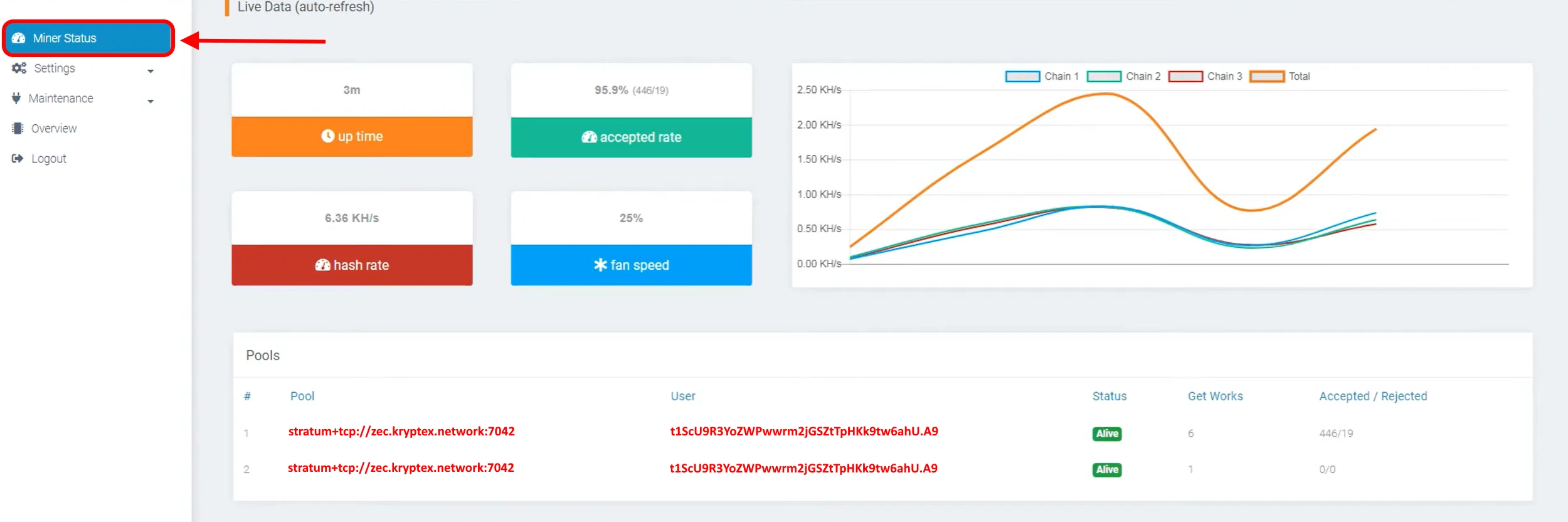
Once the restart is complete, wait a few minutes. Open your browser, enter the ASIC’s IP address, and log in using your credentials.
On the “Miner Status” page, you’ll see the current status of the ASIC, including hash rate, uptime, temperature, and other metrics.
Innosilicon ZMaster A9, A9+, A9++ Firmware Update
If necessary, you can update or change the firmware yourself, for this:
Download the firmware from the developer’s website — https://www.innosilicon.com/
In the ASIC’s web interface, open the “Maintenance” → “Firmware” page.
Click “Choose File” to select the firmware file you downloaded.
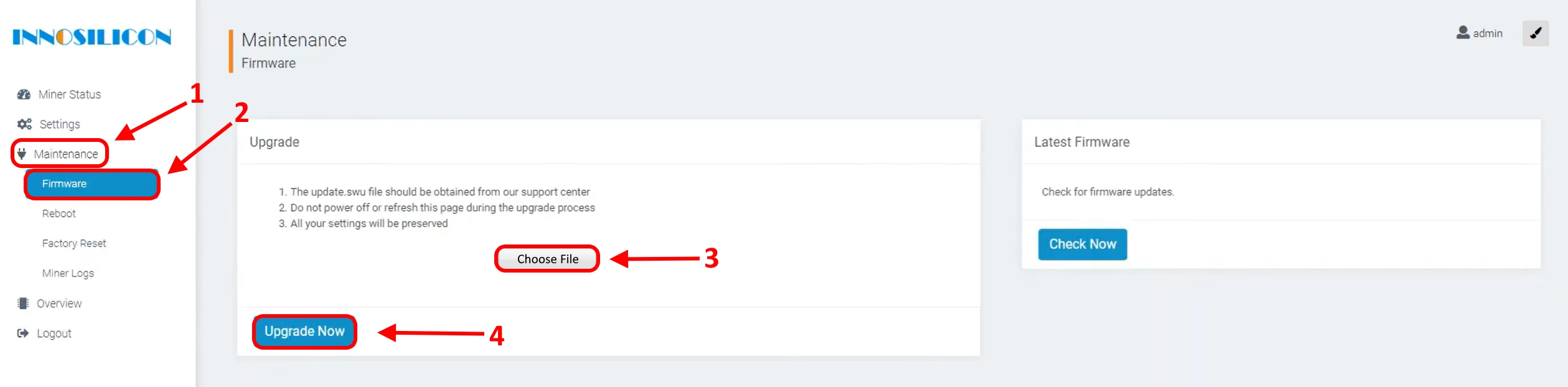
Click “Update Now” and wait for the firmware update to complete. Do not power off the ASIC during the update.
Need Help?
Have any questions, something is unclear, or you can’t connect?
Contact support — we are happy to assist!
Email support at support@kryptex.com.